
What is Kernel:-
The kernel is a computer program that is the core of a computer’s operating system, with complete control over everything in the system.
It acts as an intermediary between the software applications and the hardware of a computer system.
It helps in the management of memory, process management, device and file system management, I/O handling and interprocess communication.
What is Shell:-
A shell is a special user program that provides an interface for the user to use OS services. Shell accepts human-readable commands from the user and converts them into something which the kernel can understand.
With the help of Shell, you can perform various tasks by providing commands. It is getting started when the user logs in or start the terminal.
Example:- If we need to create a folder(Directory) via terminal we use "mkdir <dir-name>" which results in creating a new directory.
Let's Begin with Day4 Tasks
Task 1- What is Linux Shell Scripting:-
As we know Shell is a program that provides an interface for the user to use OS services. Scripting is a sequence of system commands pasted in the file. So Shell Scripting is a series of commands written in a script file that can be executed together, automating tasks and performing system operations without the need for manual input.
There are different Shell used for scripting on Linux. Some of them are as follows:-
BASH (Bourne Again SHell) - (most commonly used shell by Linux)
DASH (Debian Almquist SHell) -(Default Shell in some Unix-like OS)
CSH (C SHell)
KSH (Korn SHell)
As the most commonly used shell for scripting is BASH, we'll learn more about BASH.
Task 2- What is #!/bin/bash can we write #!/bin/sh as well?
The "#!/bin/bash" is a special line at the beginning of a shell script file that tells the system which shell should be used to interpret and execute the script.
In this case, "#!" refers to "Shebang" and "/bin/bash" tells Interpreter used.
The interpreter is more important when you deploy your script to another system. Always check that interpreter provided is present on the system where you want to run the script file.
If you want to use the default Interpreter to interpret the script you can use "/bin/sh" with Shebang lines.
Note:- BASH is not a default shell in Ubuntu. For Ubuntu and Debian Linux distributions, DASH is the default system shell.
Finally, we conclude that we can write "#!/bin/bash" or "#!/bin/sh" but depending on your specific requirements and your desire for compatibility with various systems both "#!/bin/bash" or "#!/bin/sh" are valid shebang lines.
Task 3- Write a Shell Script which prints "I will complete #90DaysOfDevOps challenge"
As we all know "echo" command is used for printing the output on the terminal. We'll use the same command to complete this task with the script.
Create "challenge.sh" as follows
#!/bin/bash
#This script prints the below massage
echo "I will complete #90DaysOfDevOps challenge"
After creating the script file first we should change the permissions for that file. Add execute (x/1) permission for the file as shown below.
chmod +x challenge.sh
To run the script use the following command. The file should be present in the working directory.
./challenge.sh
Note:- If you don't want to execute the script without changing any permissions use the following command.
/bin/bash challenge.sh
Task 4- Write a Shell Script to take user input, input from arguments and print the variables
Task a - Take user input
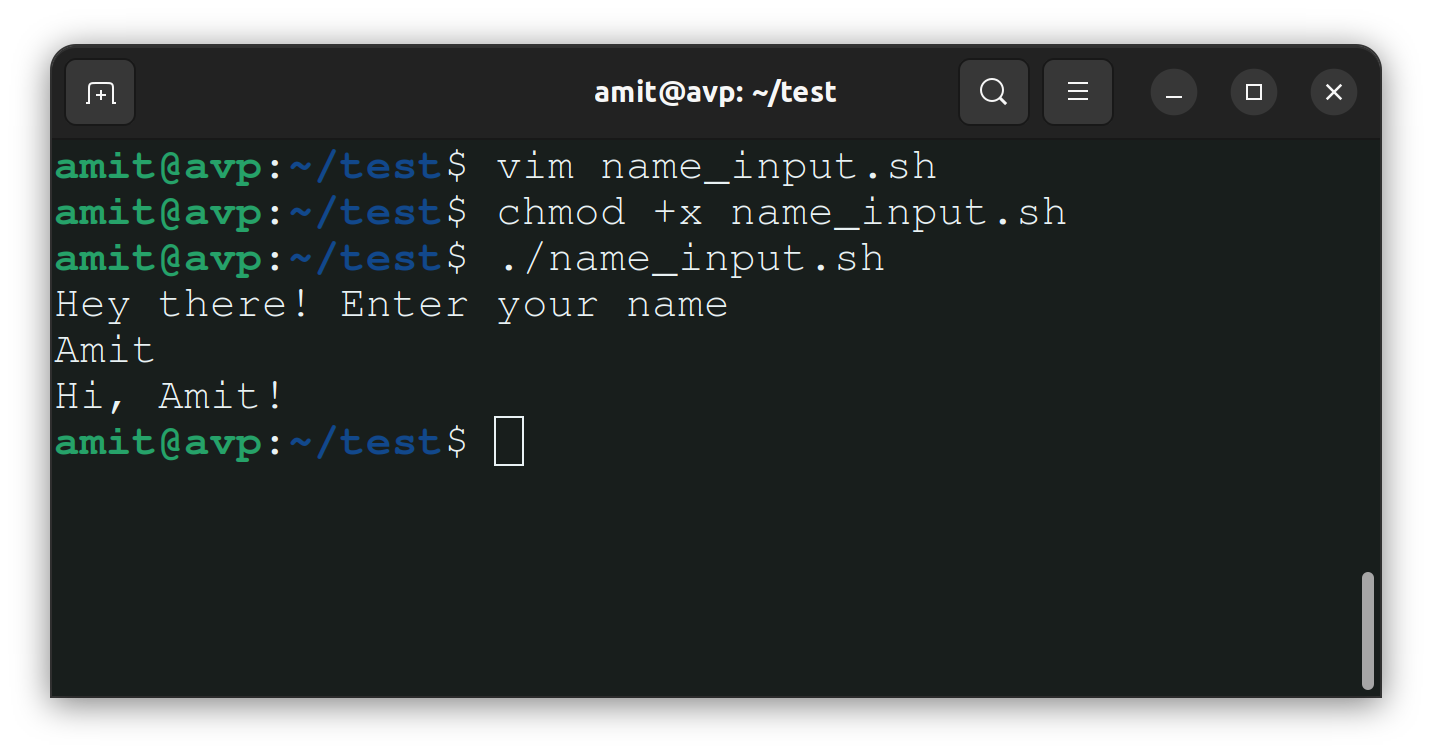
For this task, we can make a script file to take the user name and print a message for the user on the terminal.
Create "name_input.sh" as follows
#!/bin/bash
#This script is about to take user input
echo "Hey there! Enter your name"
read name
echo "Hi, $name!"
Output:-
Task b - Input from Arguments and print the variable
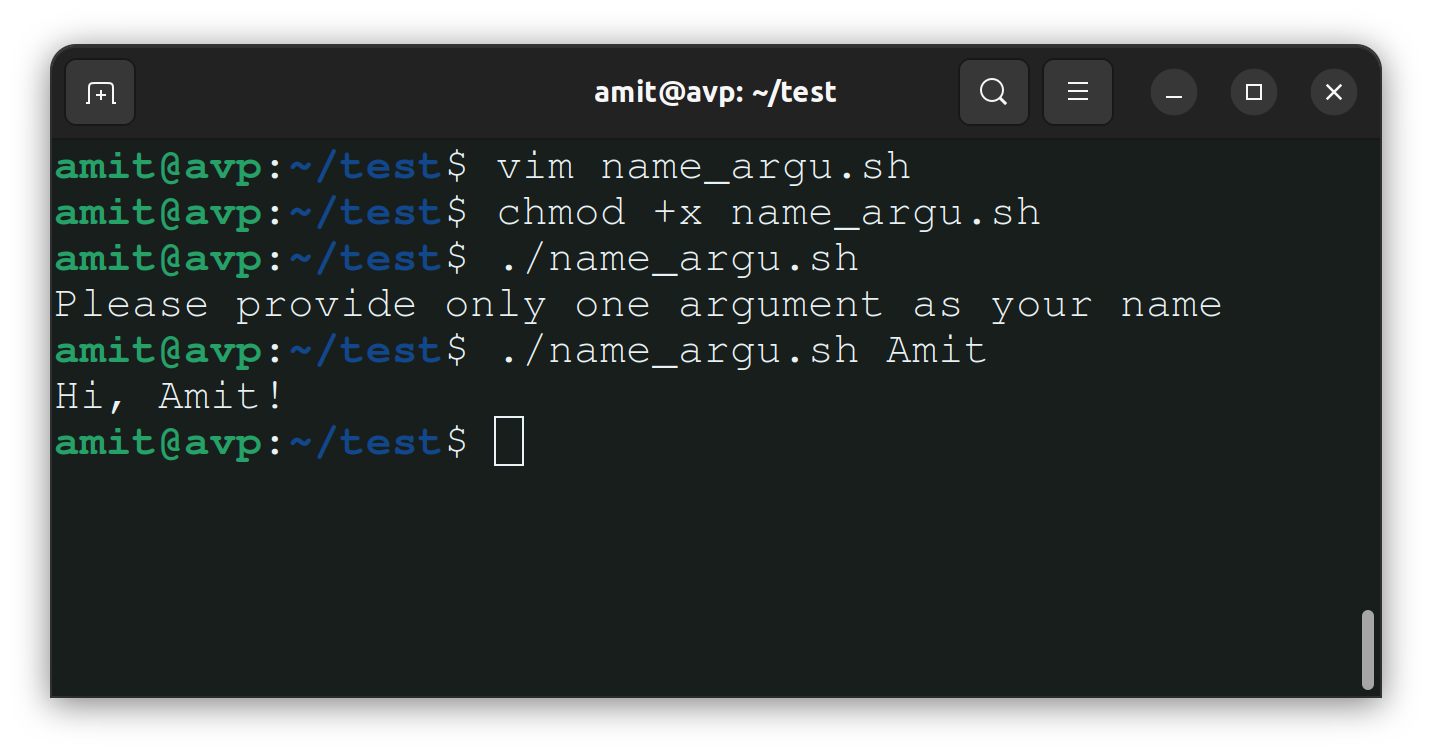
For this task, we will provide our name as an argument and then print the same name with some massage on the terminal.
Create "name_argu.sh" as follows
#!/bin/bash
#For this script please provide your name as a argument
if [ $# -ne 1 ]; then
    echo "Please provide only one argument as your name"
    exit 1
fi
name=$1 #"name" is an variable assigned with 1st argument
echo "Hi, $name!"
Output:-
Task 5 - Write an Example of If else in Shell Scripting by comparing 2 numbers
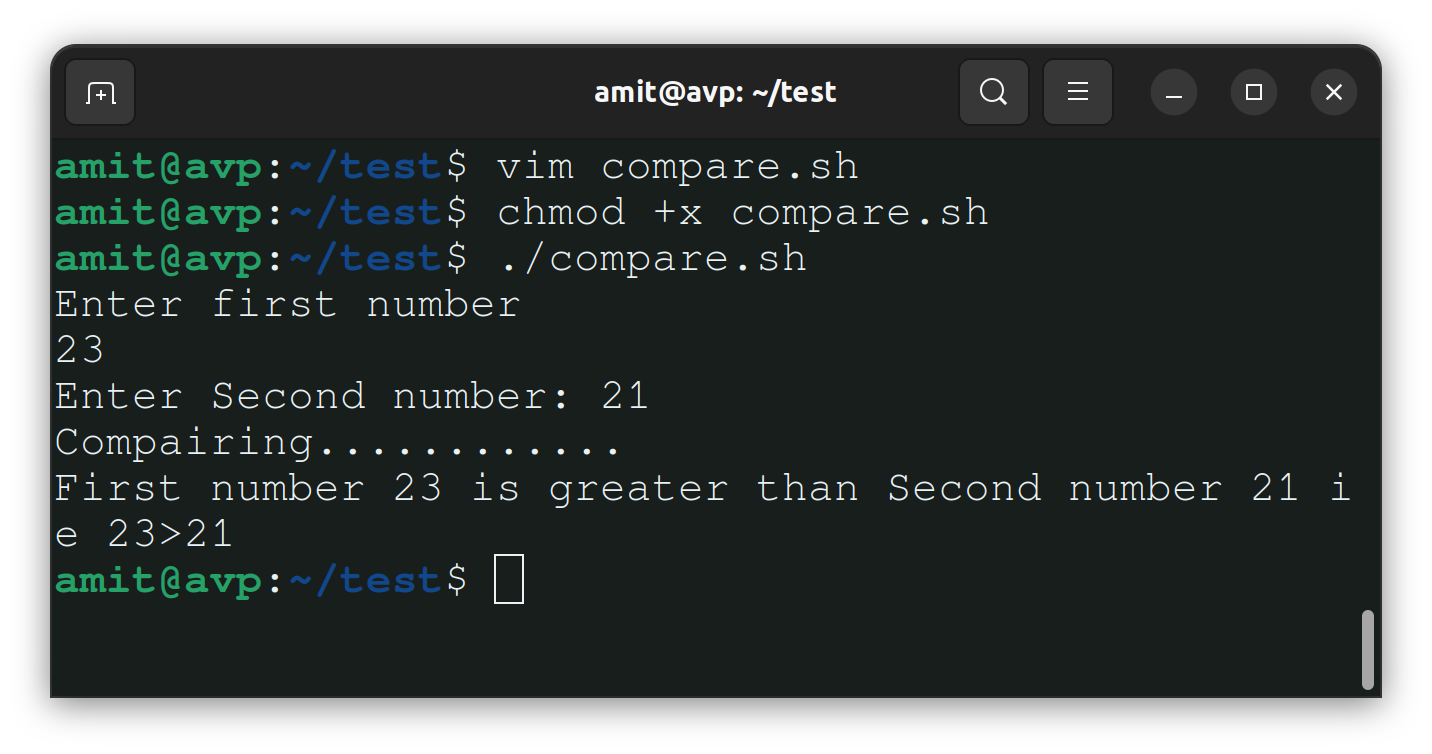
We can write this script file for asking two numbers from the user and give them results by comparing them.
Create "compare.sh" file as follows
#!/bin/bash
#Two numbers for comparision from user
echo "Enter first number"
read num1
read -p "Enter Second number: " num2
#Compare this two numbers by using if-else condition
echo "Compairing............"
sleep 3
if [ $num1 -gt $num2 ]; then
    echo "First number $num1 is greater than Second number $num2 ie $num1>$num2"
elif [ $num1 -lt $num2 ]; then
    echo "First number $num1 is less than Second number $num2 ie $num1<$num2"
else
    echo "Both numbers are equal! ie $num1=$num2"
fi
Output:-
For more BASH script files checkout this repo:- https://github.com/amitvpawar/Bash-DevOps-Batch-4.git
Thank you so much for taking the time to read till the end! Hope you found this blog informative and helpful in understanding Shell Scripting.
Feel free to explore more of my content, and don't hesitate to reach out if need any assistance from me or in case of you have any questions.
Find me on:- Hashnode LinkedIn Github
Happy Learning!


