Day 85- 90DaysOfDevOps
Project 6 - Deploying Node JS app on AWS ECS Fargate with AWS ECR

Hey Learners! Welcome back. This is the Sixth project of 90DaysOfDevOps challenge. In this project we'll deploy Node JS ToDo application on AWS ECS Fargate and AWS ECR. Let's deploy...
Project Description:-
This project involves deploying the Node JS ToDo application on AWS ECS Fargate using AWS ECR service. We'll clone the repository to local and will build images. Configure the ECR and create repository to store docker images. Using IAM user credentials will configure AWS CLI and push the local image into ECR repository. Finally, we'll create cluster on ECS with Fargate and deploy the application. Let's begin...
Prerequisites:-
EC2 instance with Docker, Git installed
Basic understanding of Dockerfile
Basic knowledge about ECS and ECR services of AWS
Steps:-
Clone the Source code from GitHub repository and build the image
Create IAM user with appropriate permissions
Install and Configure AWS CLI
Create ECR repository and push docker image
Configure AWS ECS and deploy application with Fargate launch type
Access ToDo application
Before start make sure you have EC2 instance with SSH access.
Clone the Source code from GitHub repository and build the image
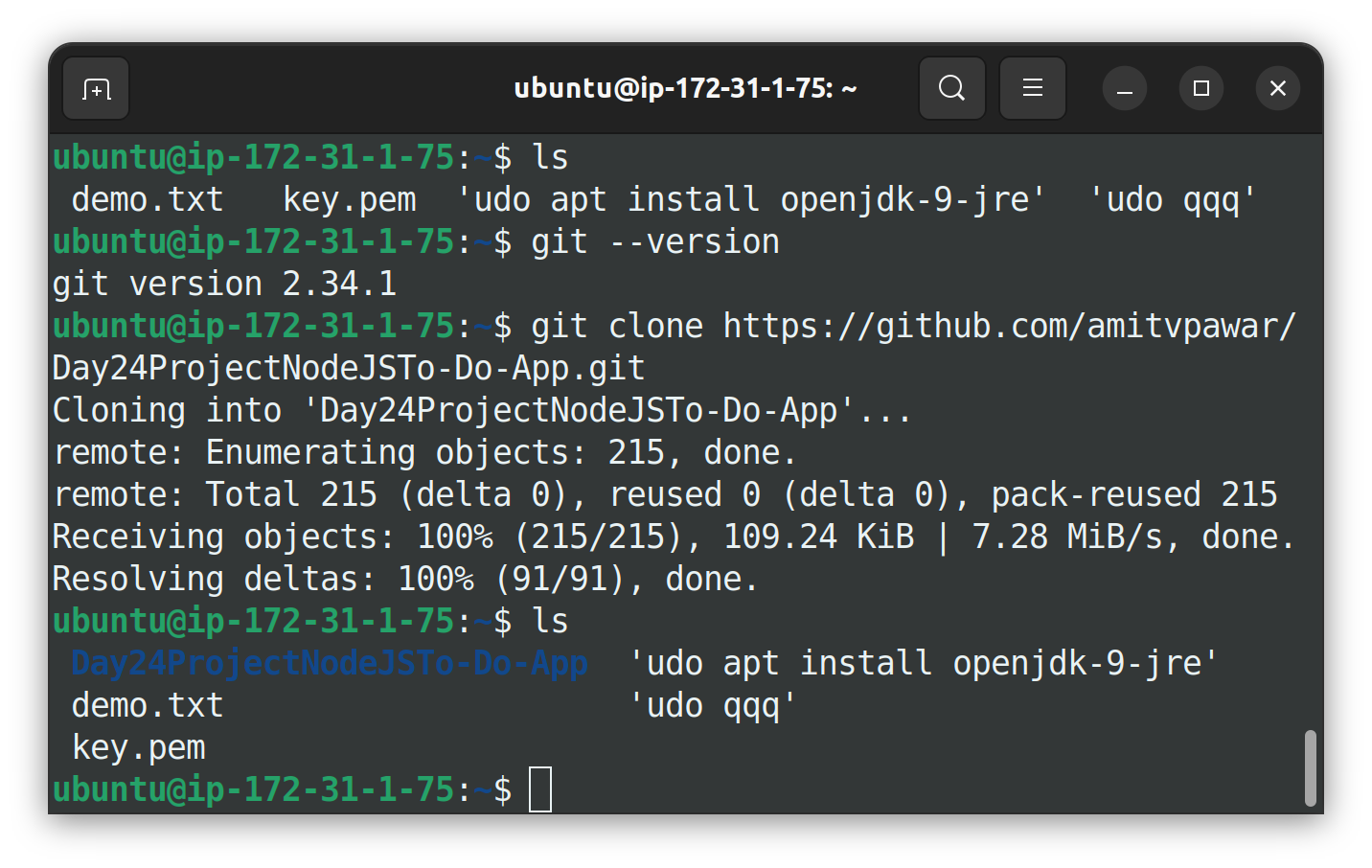
Login to GitHub and copy the URL of your ToDo application's repository to clone it into EC2 locally. Use git clone <URL> command to clone repository.
Git Repo:- https://github.com/amitvpawar/Day24ProjectNodeJSTo-Do-App.git
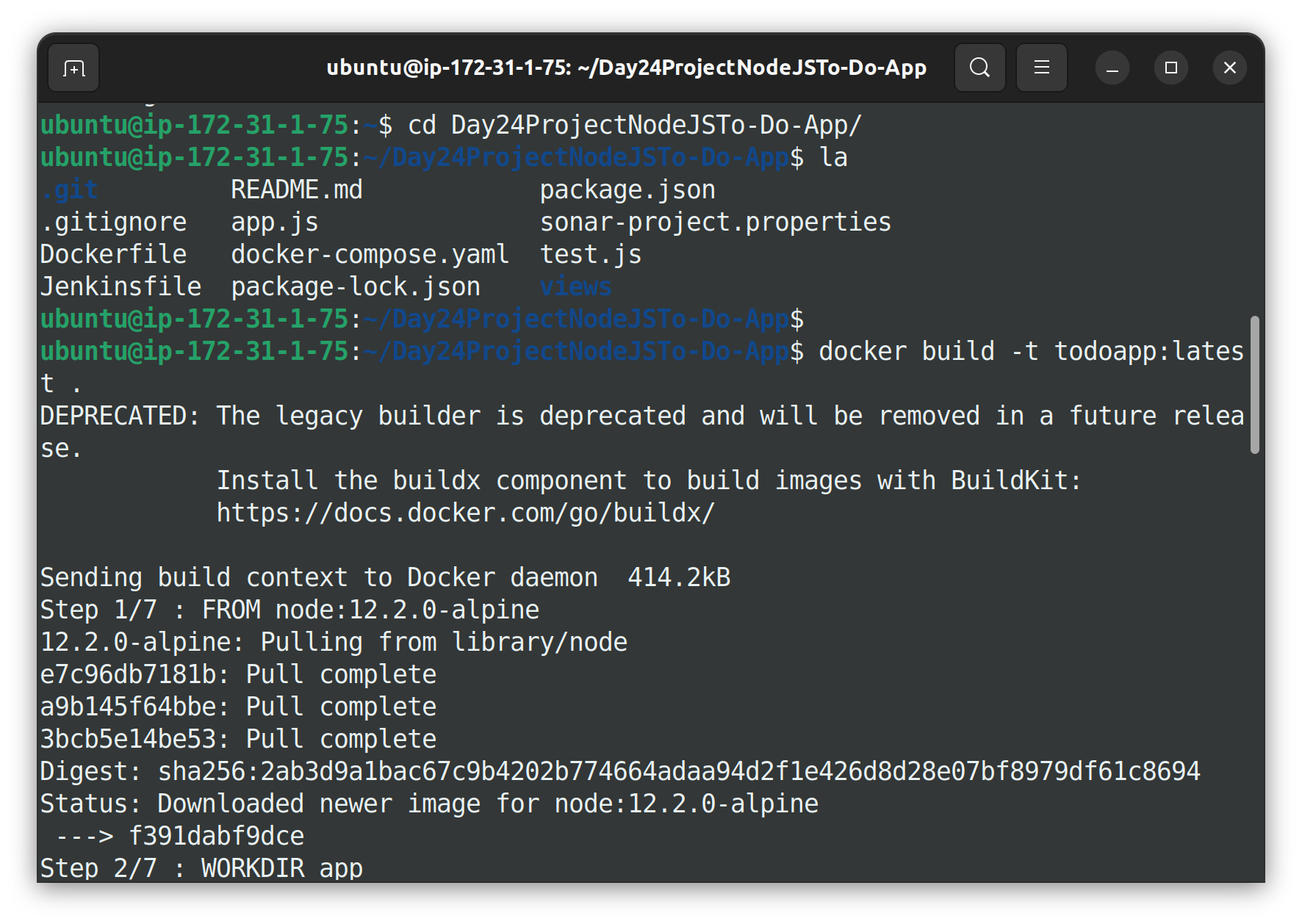
Now build an image using docker build command

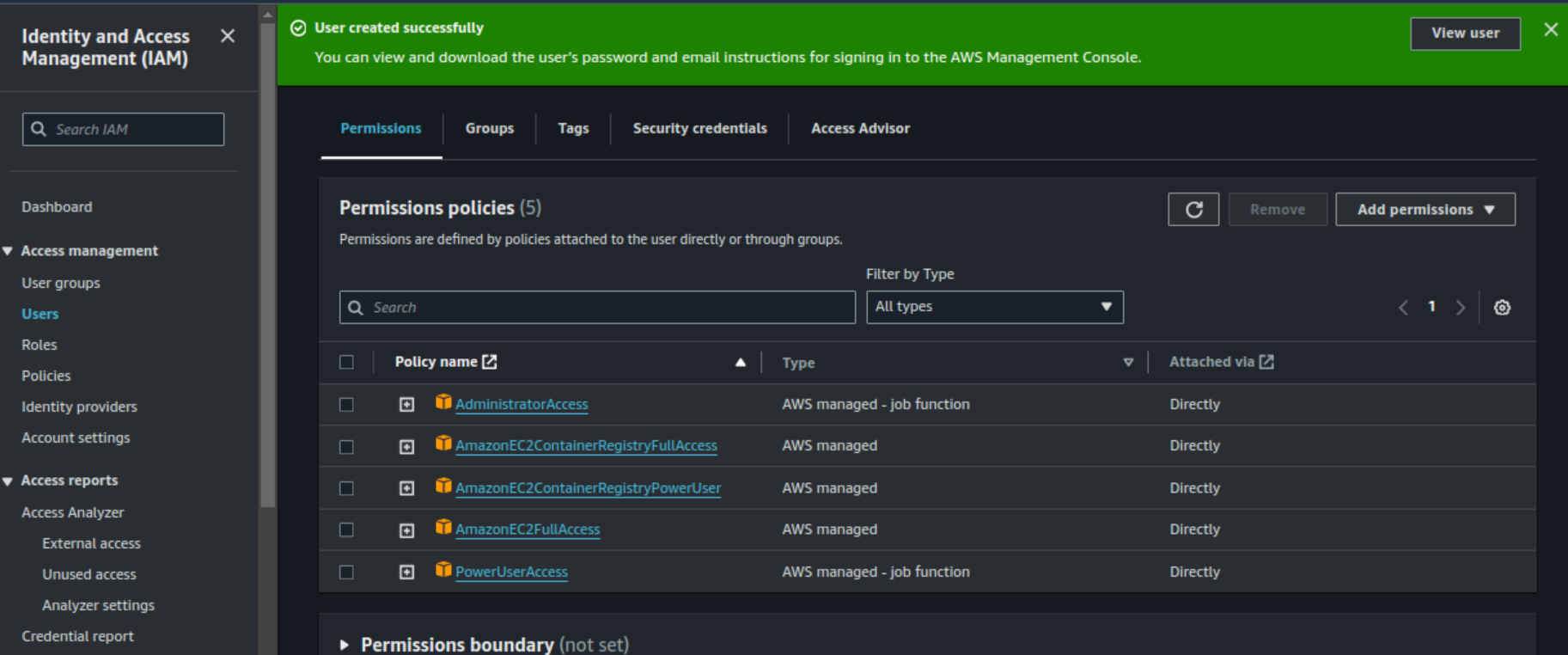
Create IAM user with appropriate permissions
Search for IAM and select Users from left pane and click on Create user. Attach policies as shown.
Now select the created User and go to Security credentials tab to create Access keys. Click Create access key and select use case as CLI. Enter tag value and Create access key.
Install and Configure AWS CLI
To install AWS CLI use sudo apt install awscli command
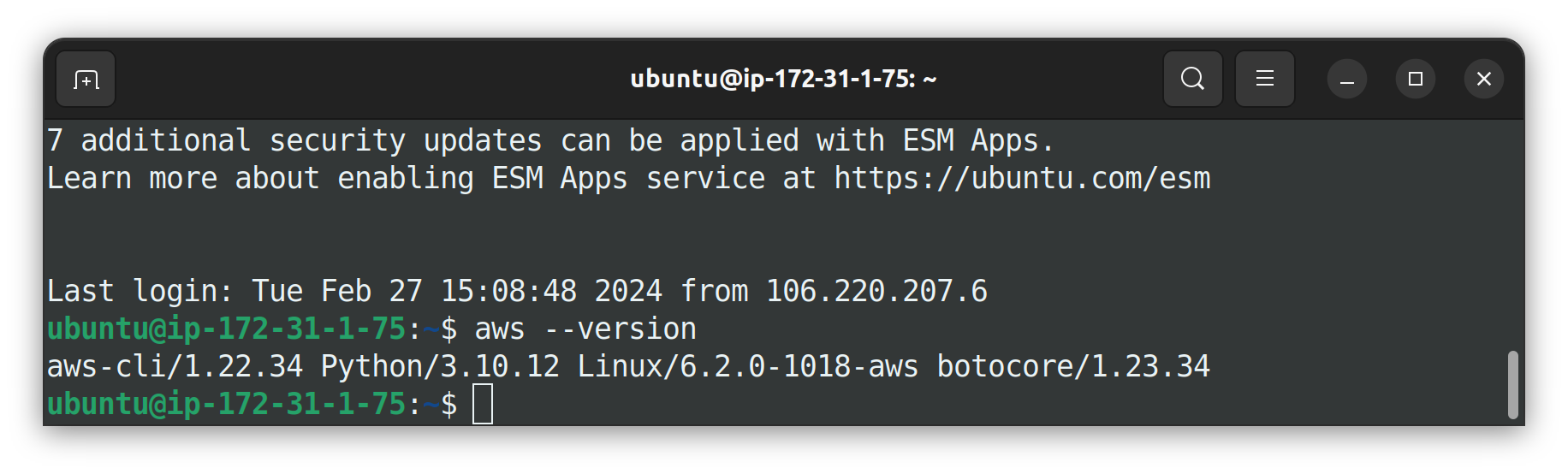
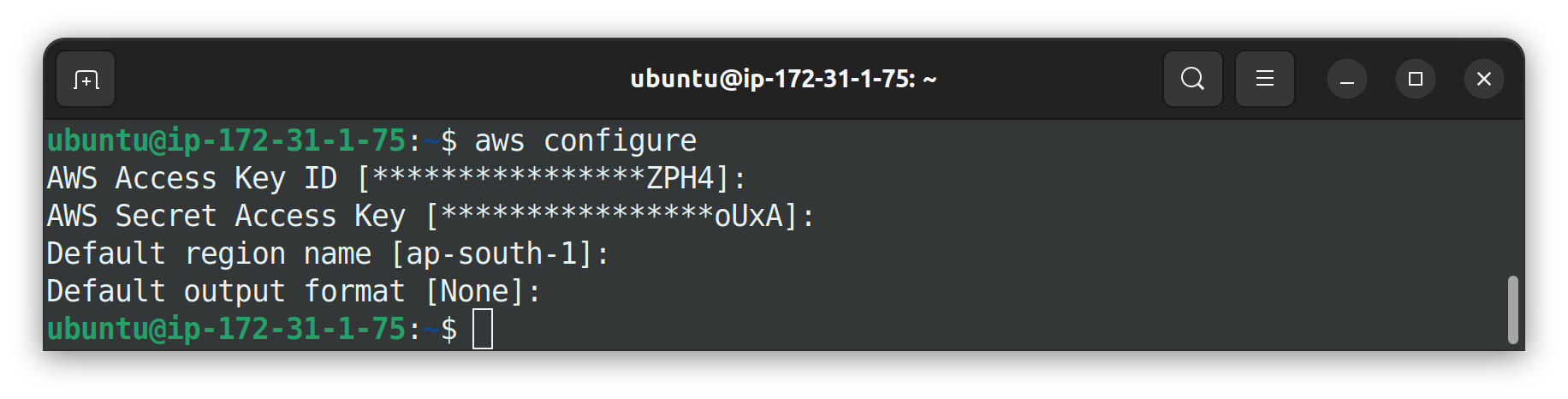
To configure use aws configure command and use the Access key and Secret access key created earlier.
Create ECR repository and push docker image
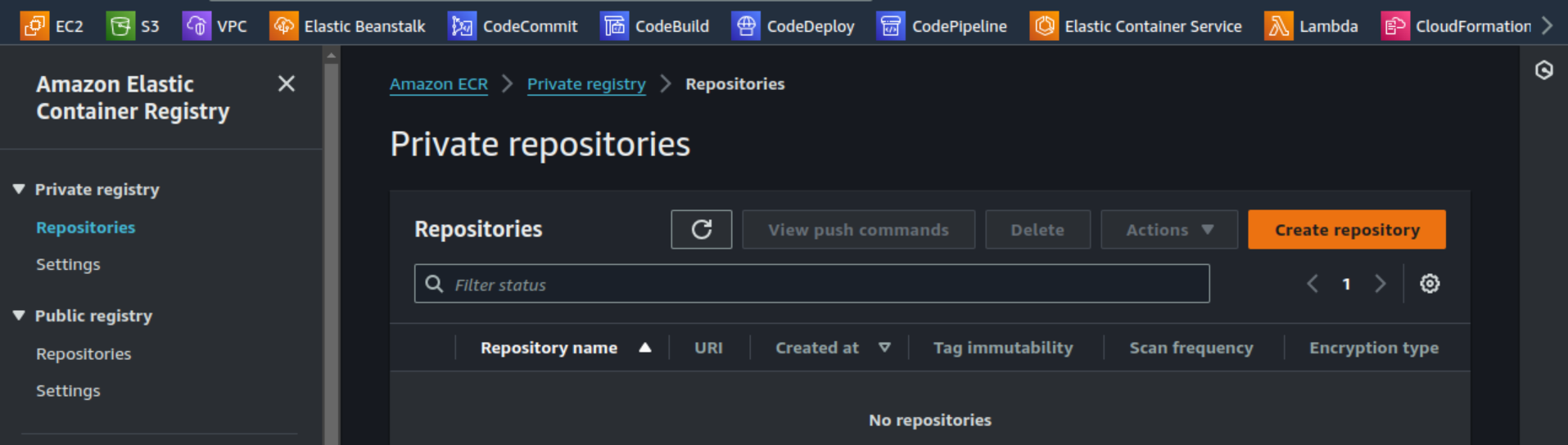
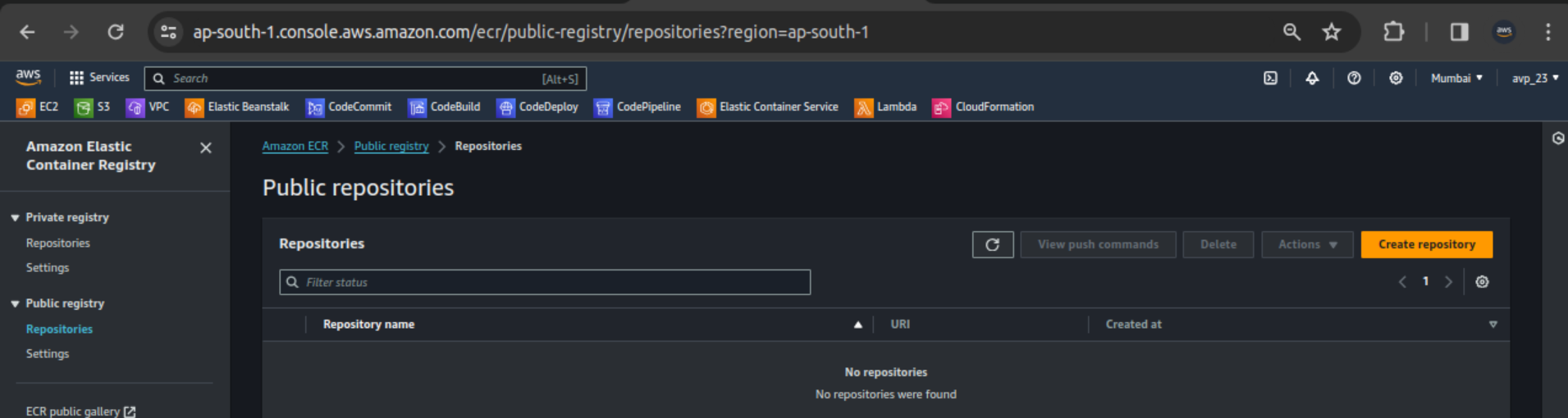
Search for ECR service. Click Create repository.
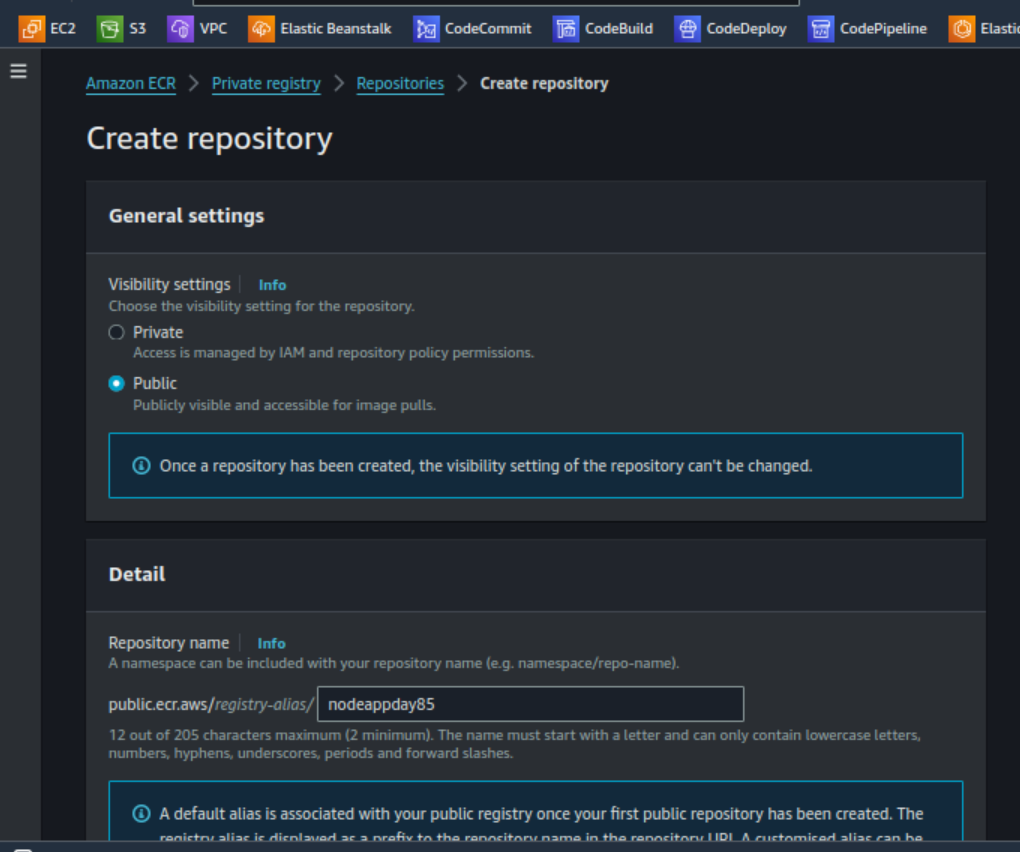
Enter the name for the repository and select Public in Visibility settings. Click Create Repository.
Note Repository name should be in lowercase
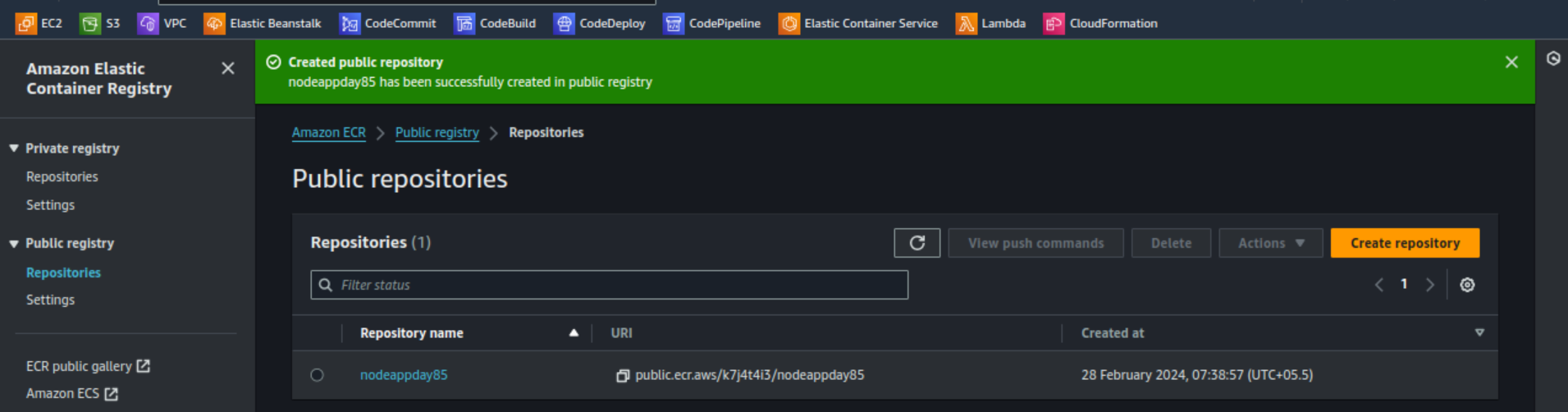
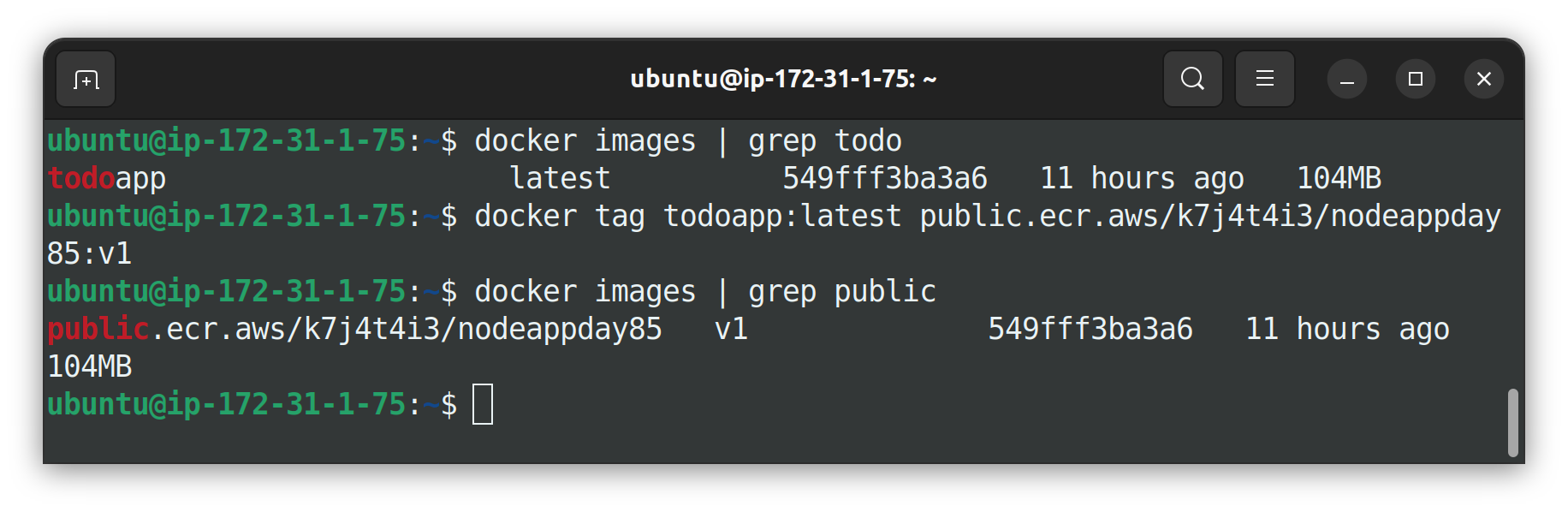
Now we have to store docker image in this ECR repository. To do so we have to tag docker image created with the ECR repository.
To tag image select the repository created and click on View push command.
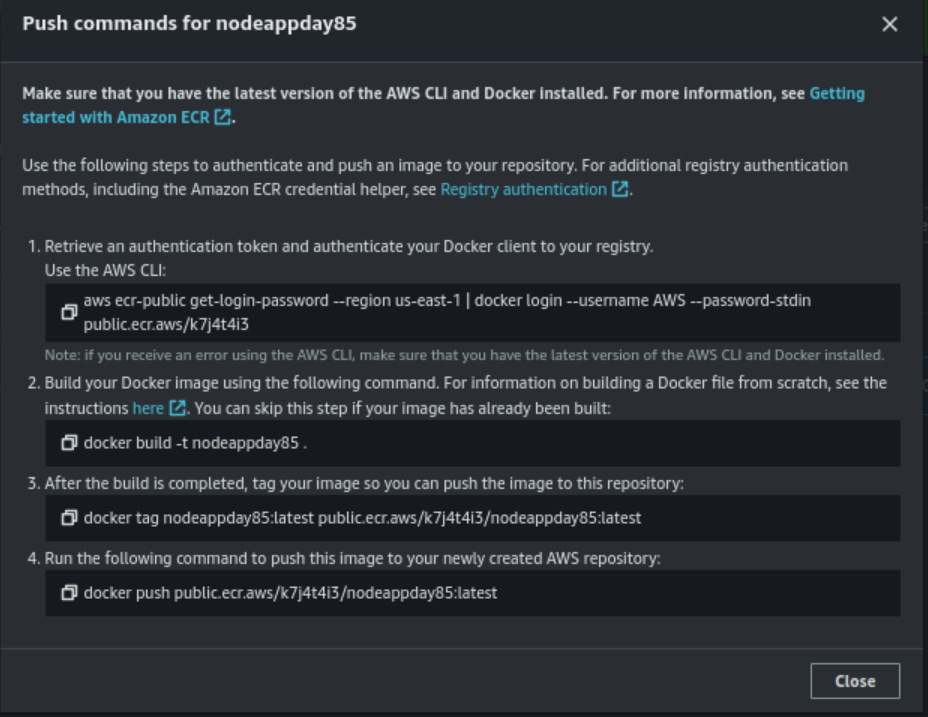
Follow the instructions
Step 1- ECR login with AWS CLI Credentials
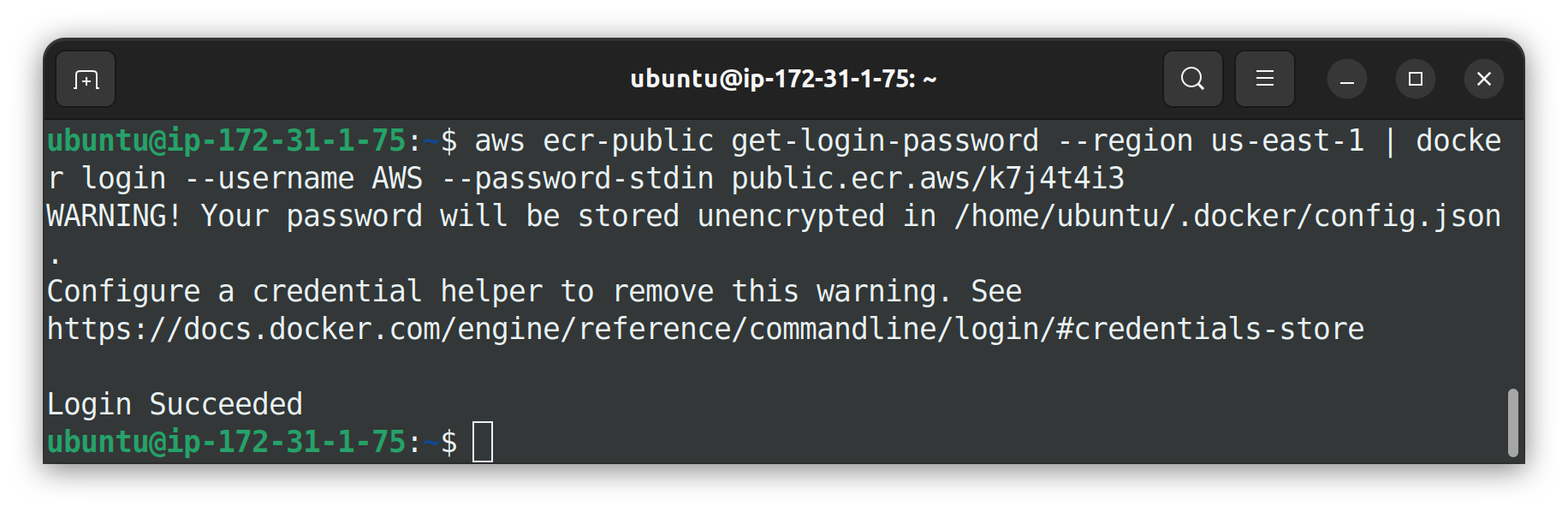
Step 2- We can skip this step as we already build image
Step 3- Tag created image to push it to the ECR repository.
Step 4- Push tagged image to ECR repository. Make sure you type command with correct tag.
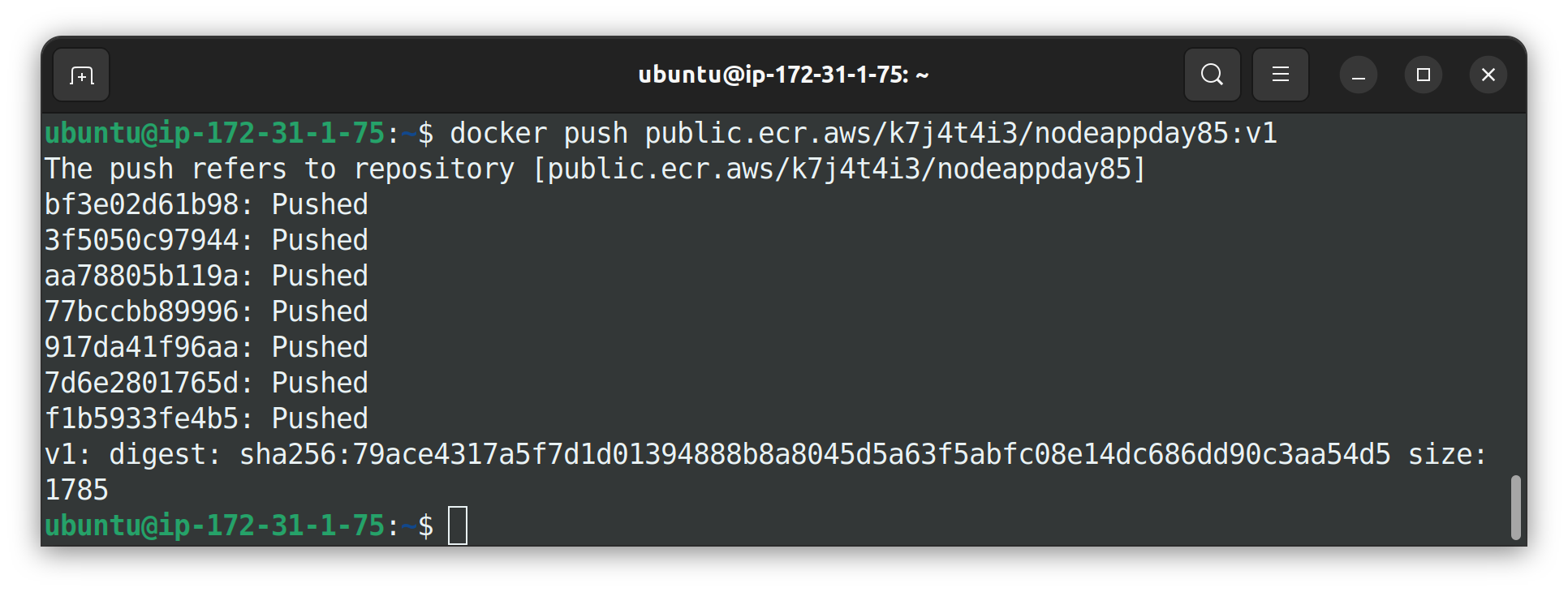
Great! you have successfully pushed docker image in to ECR repository.
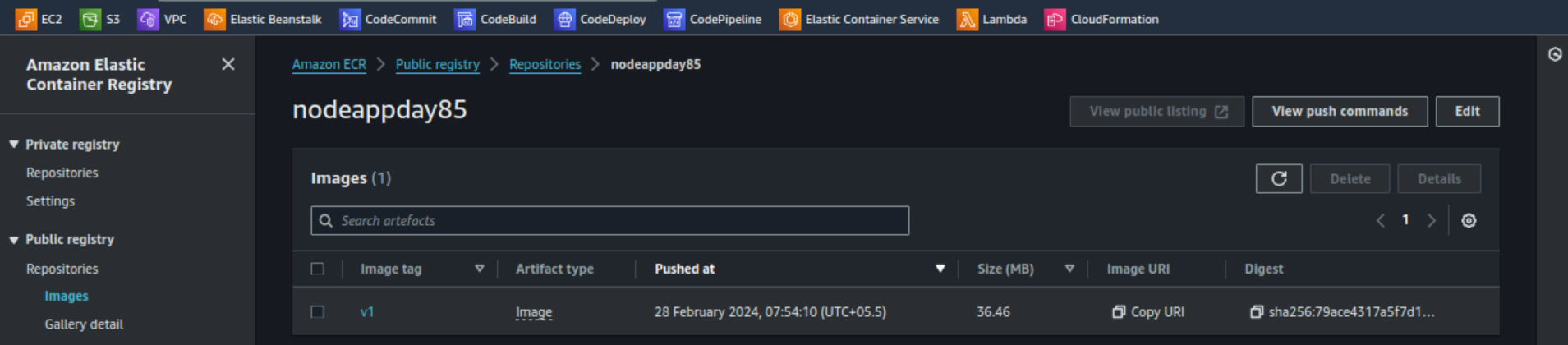
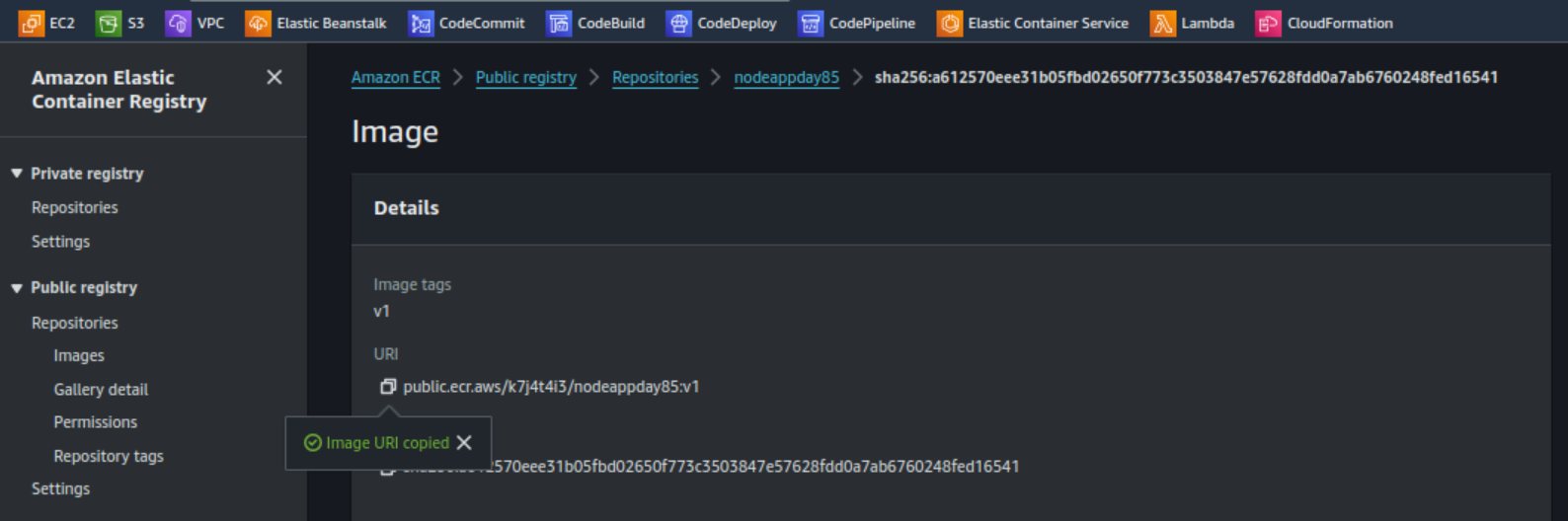
Now got to the ECR console and check by selecting the repository. You will have one image with "v1" tag
Configure AWS ECS and deploy application with Fargate launch type
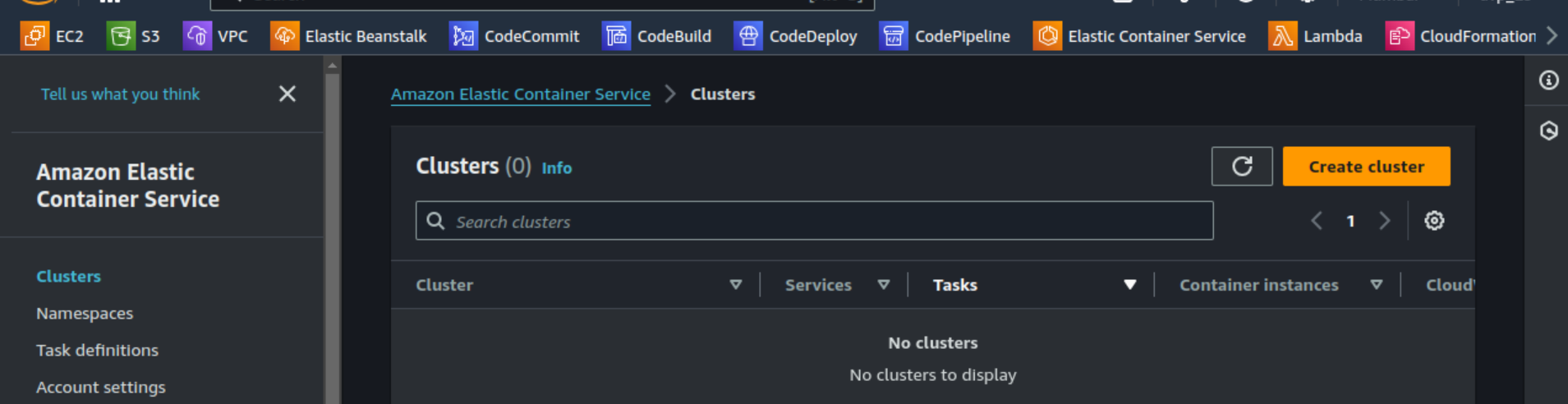
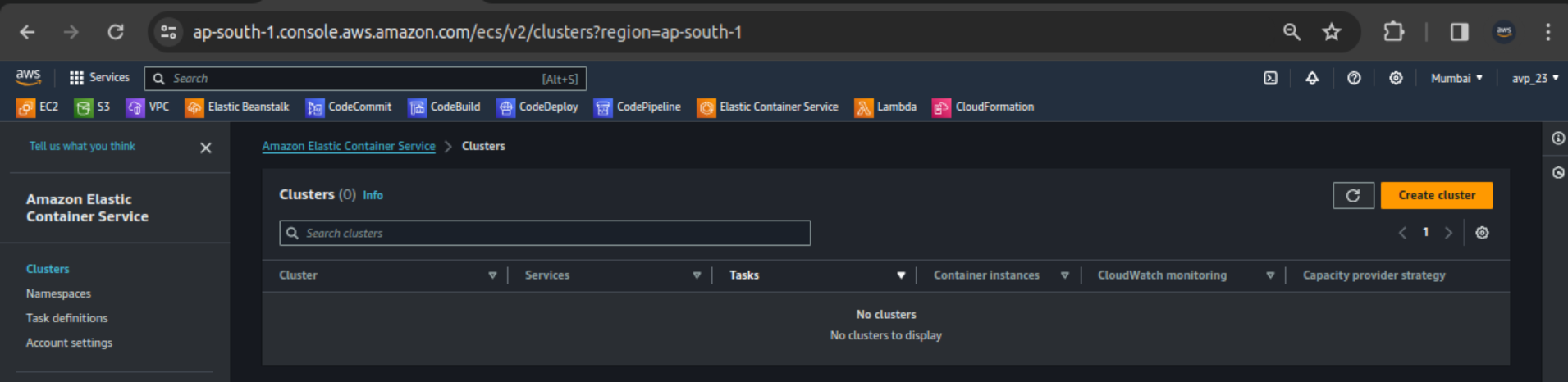
Search for ECS service and select Clusters from left pane. Click Create cluster.
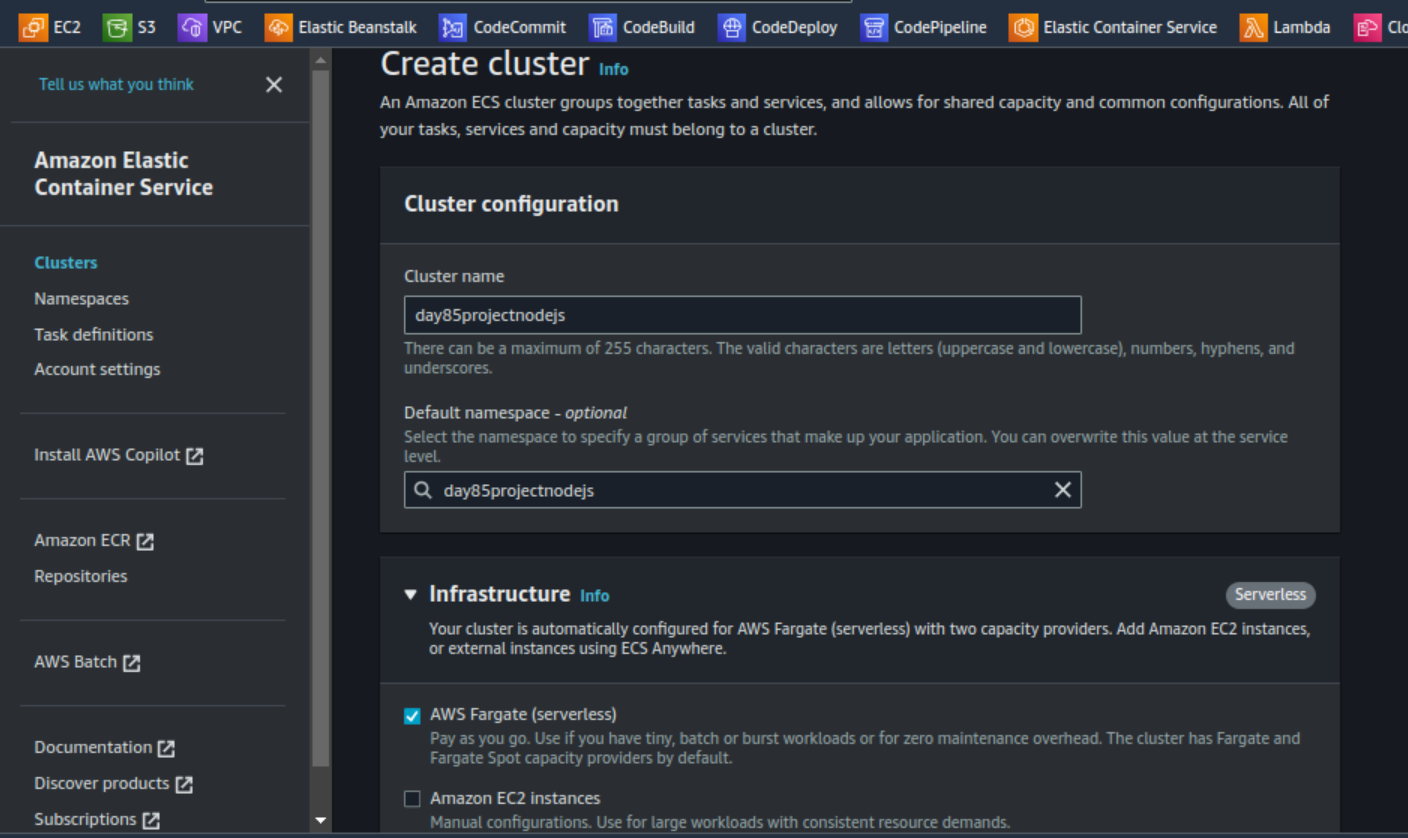
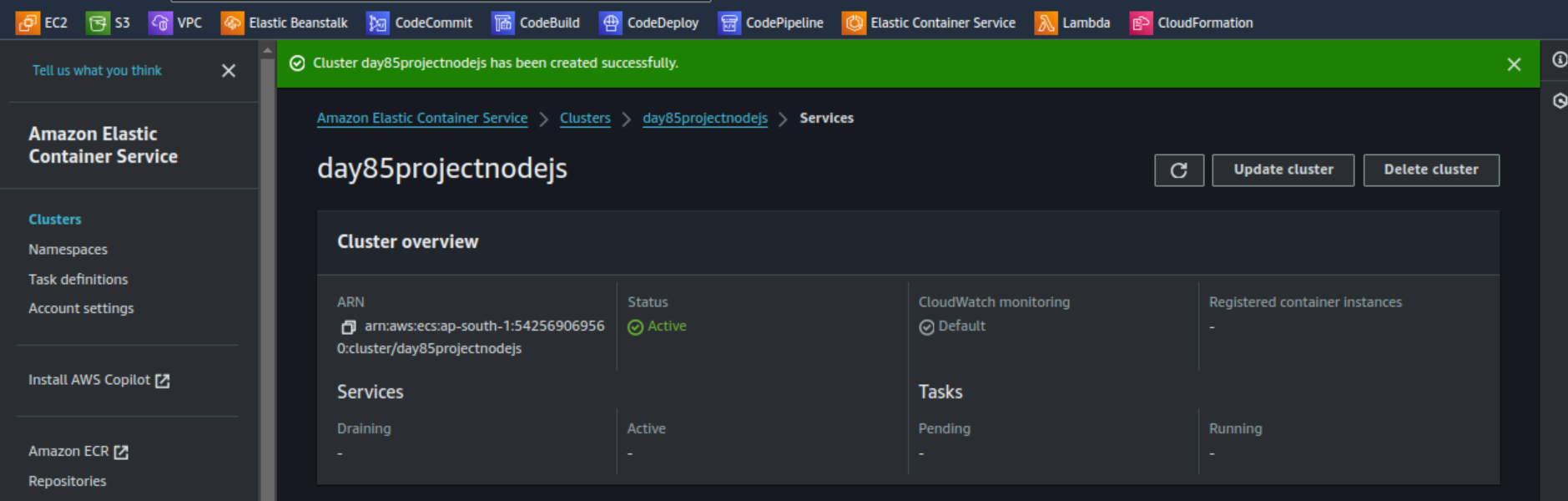
Enter the name for cluster and select AWS Fargate as the launch type for your cluster and select Create.
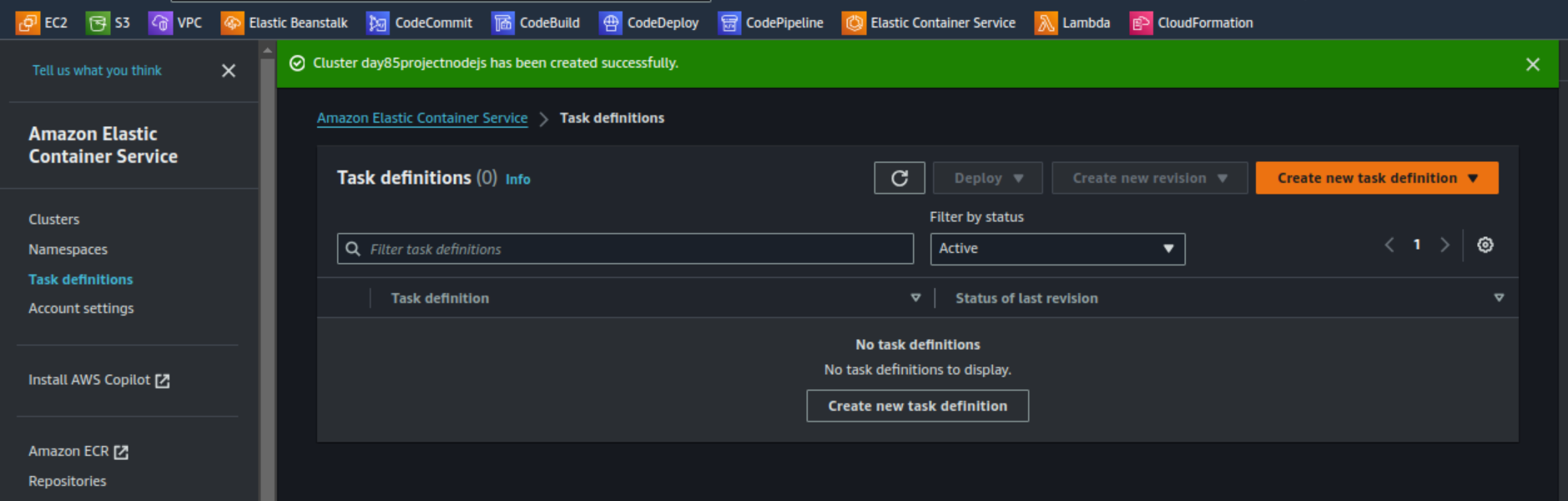
Select Task definitions from left pane and click Create new task definition.
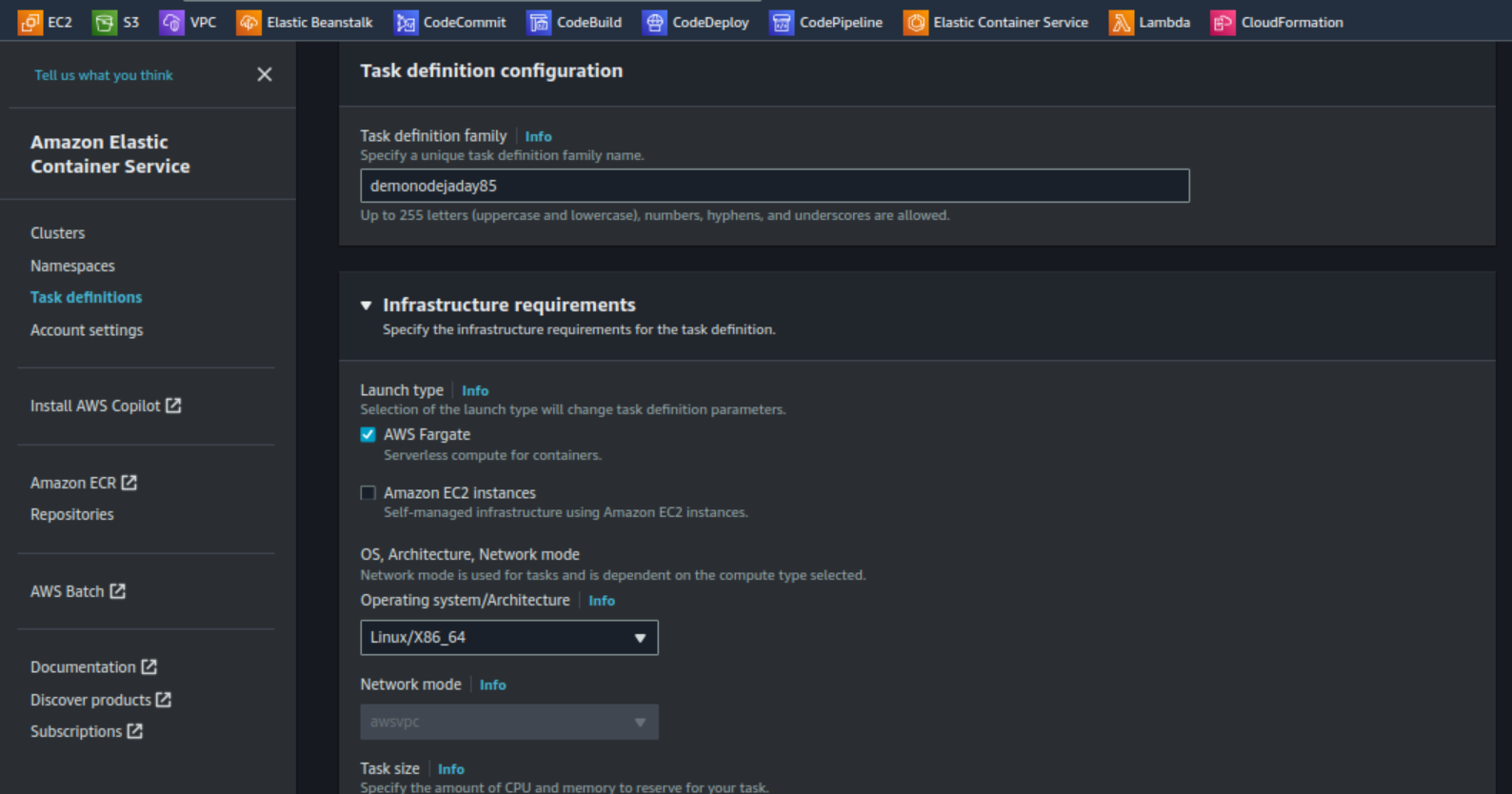
Enter the name for task definition and select AWS Fargate as launch type.
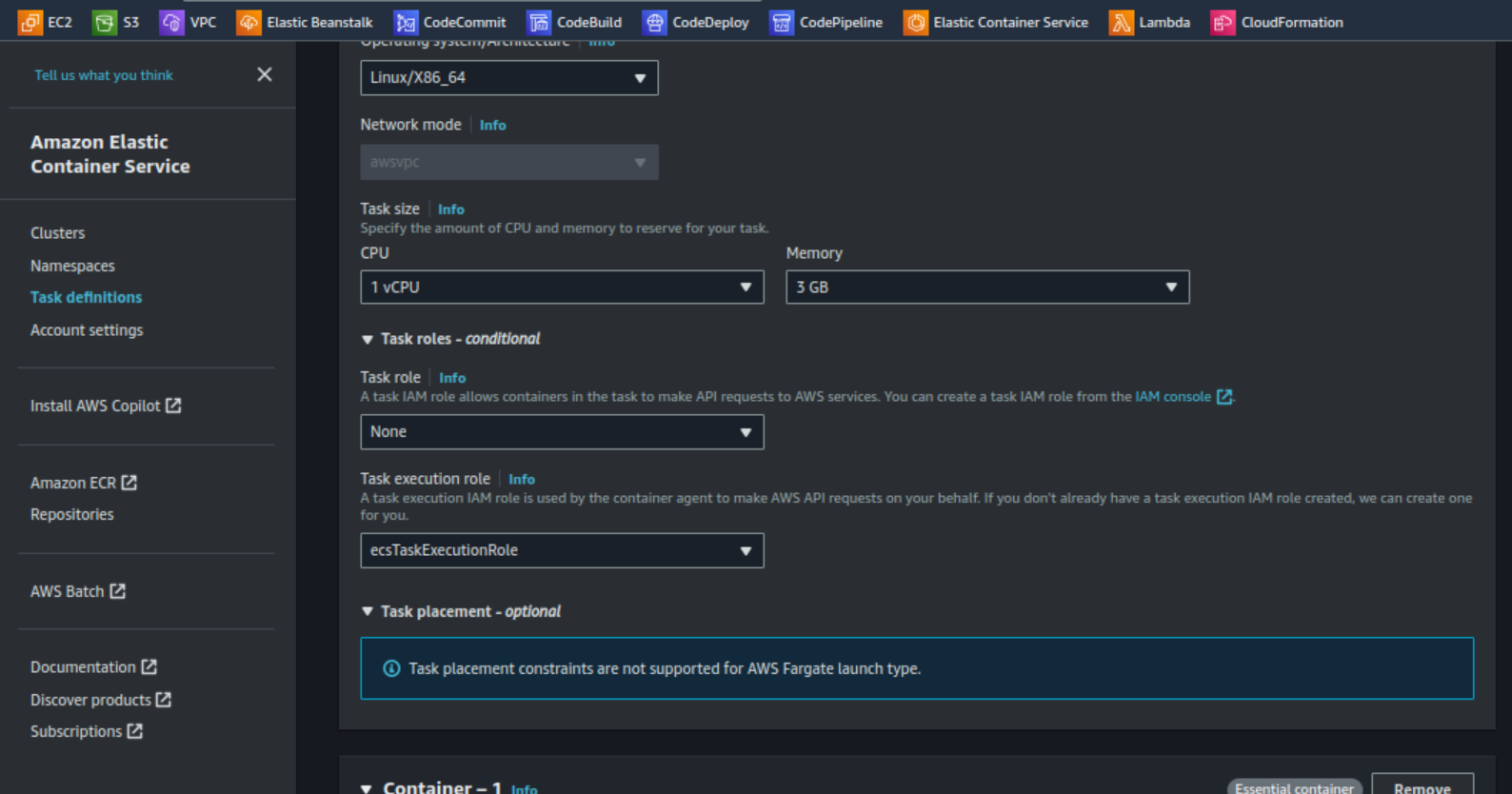
Select the Task size as required and the Task role.
Want to create Task role refer this project.
Fill the container details. Copy the image URL from repository created with image details option
Define the port required.
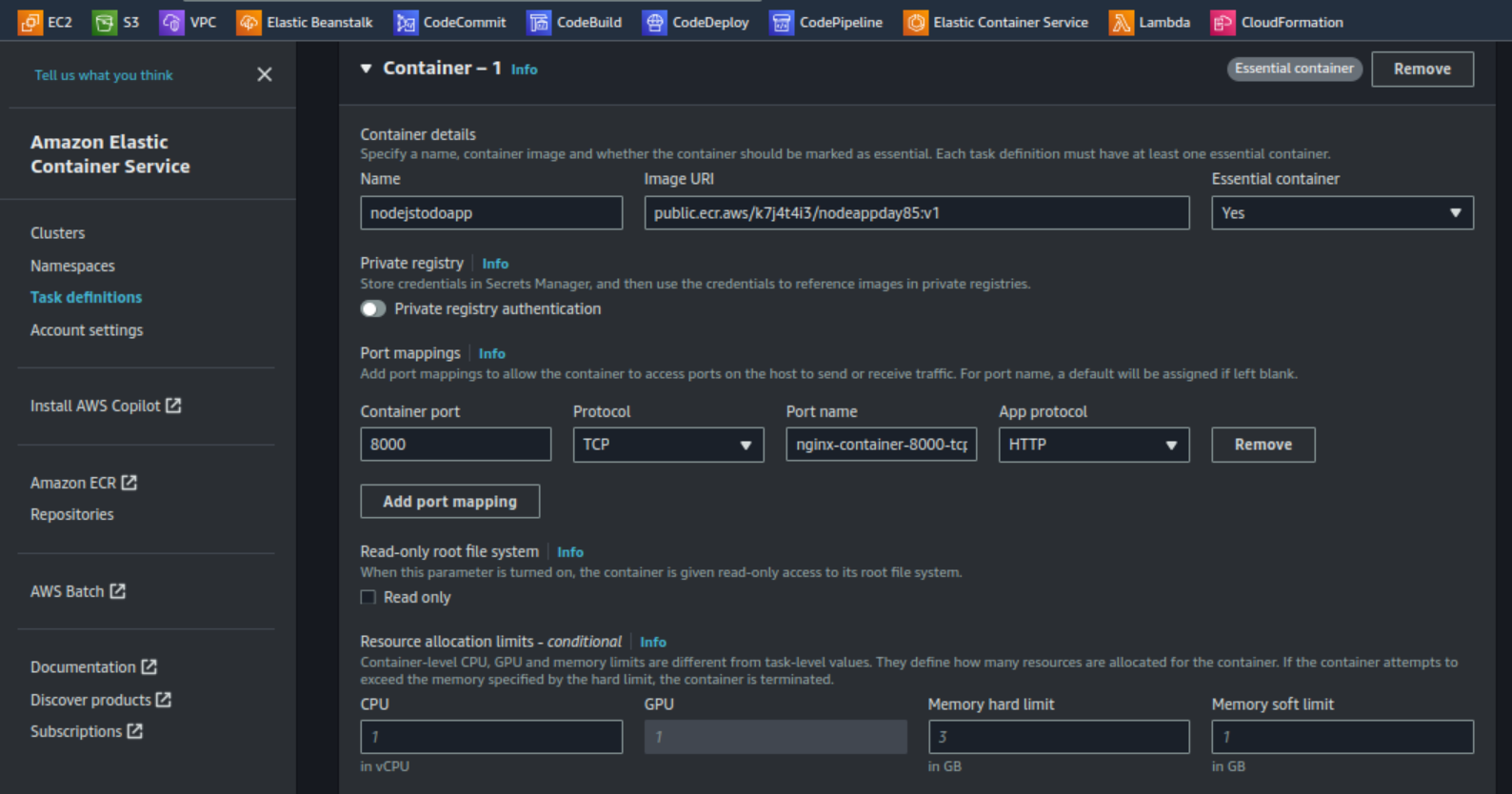
Let the other setting as default and click Create.
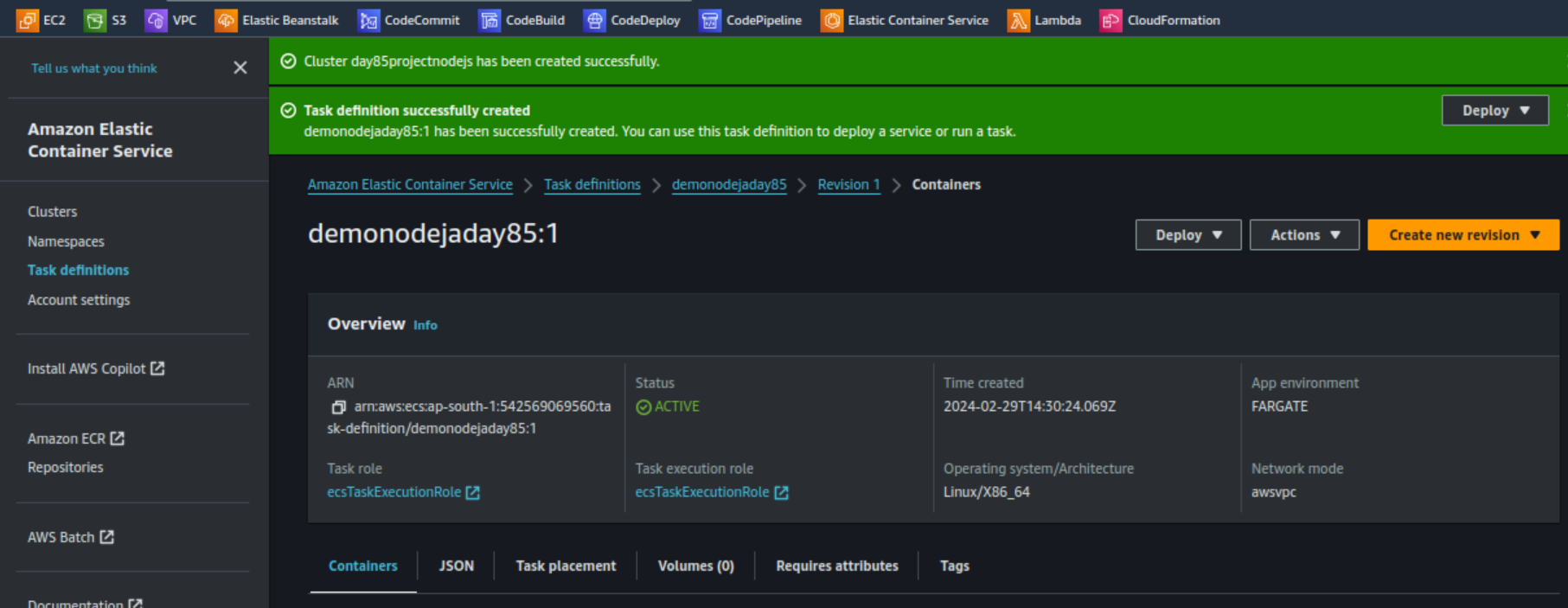
Select the ECS cluster created earlier and navigate to the Task section.
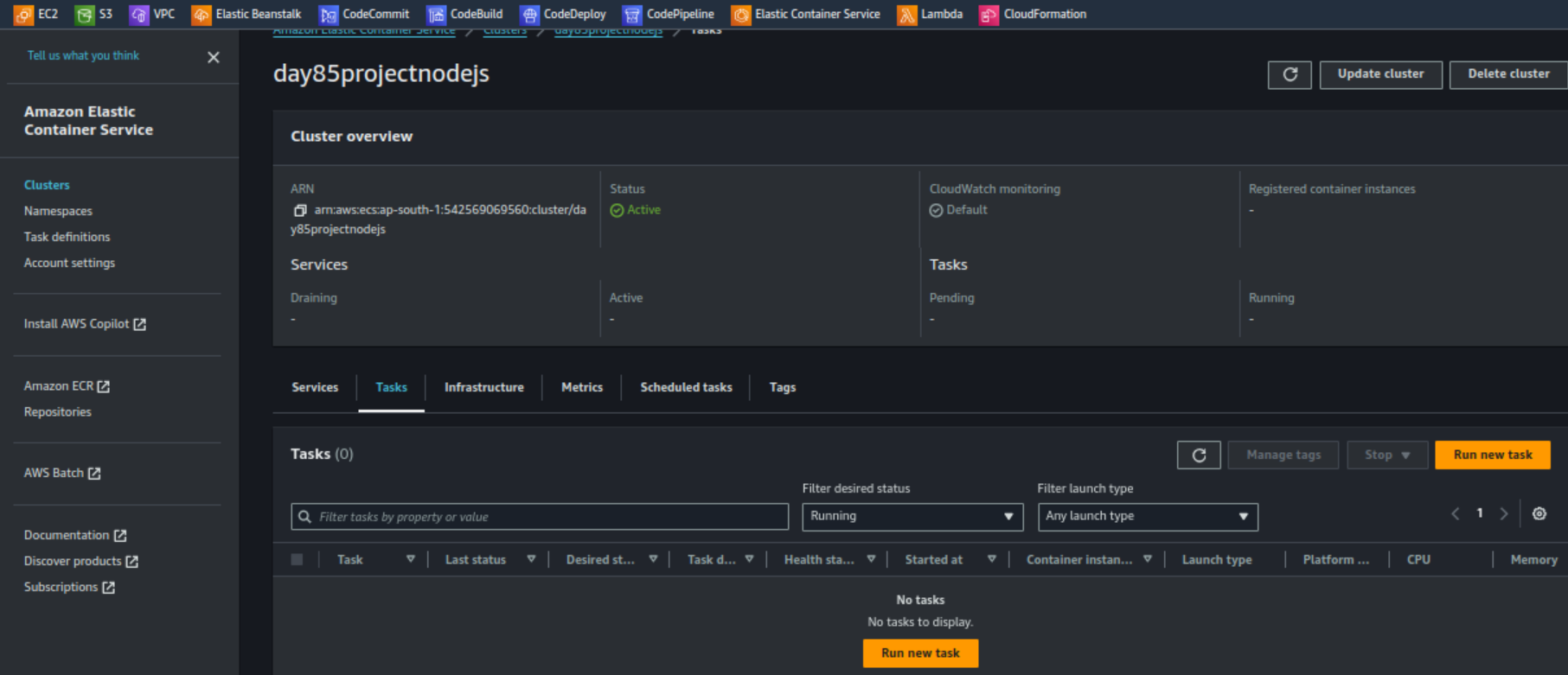
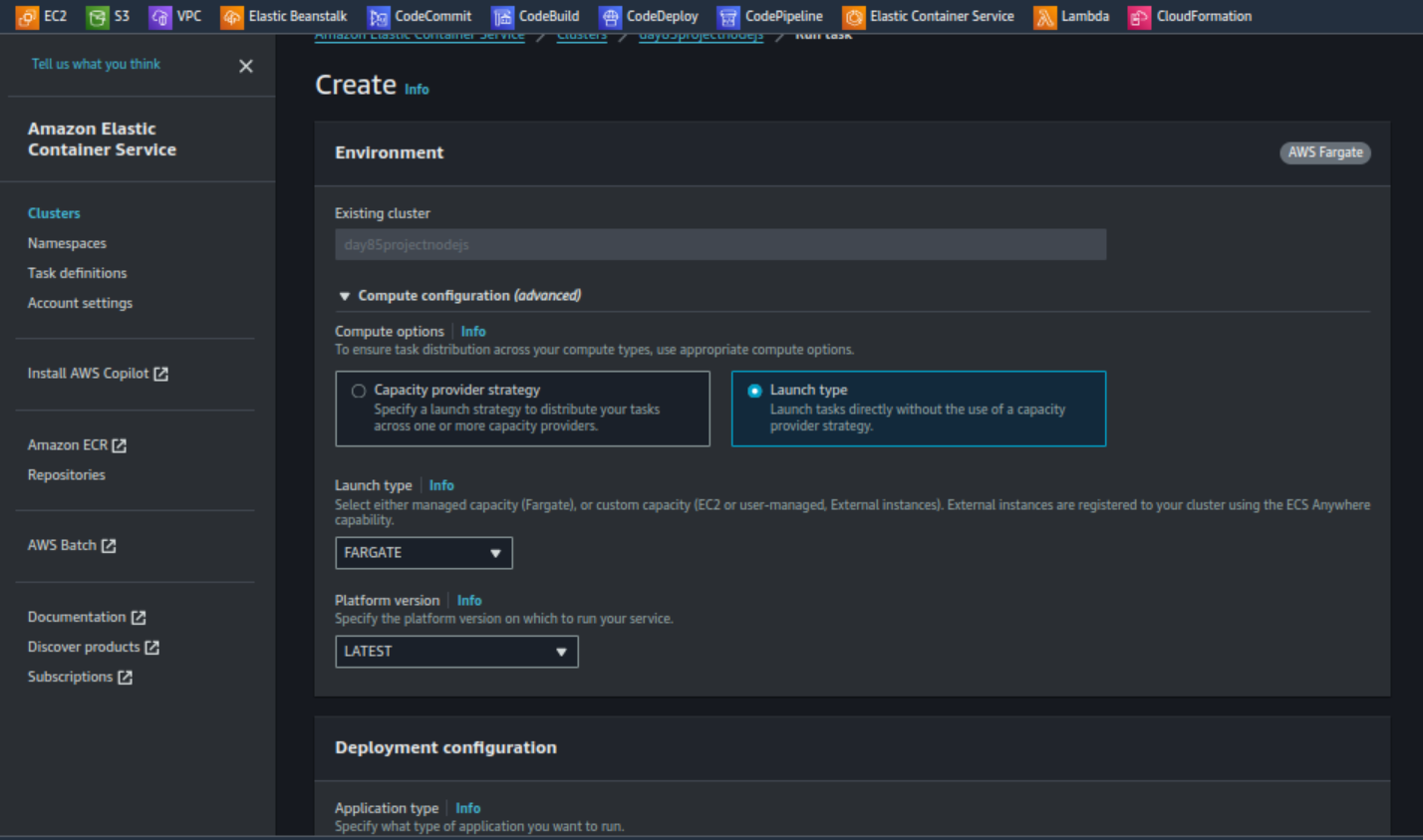
Click on Run new task Select Compute options as required and select the task definition you created earlier in the Family section. Click Create.
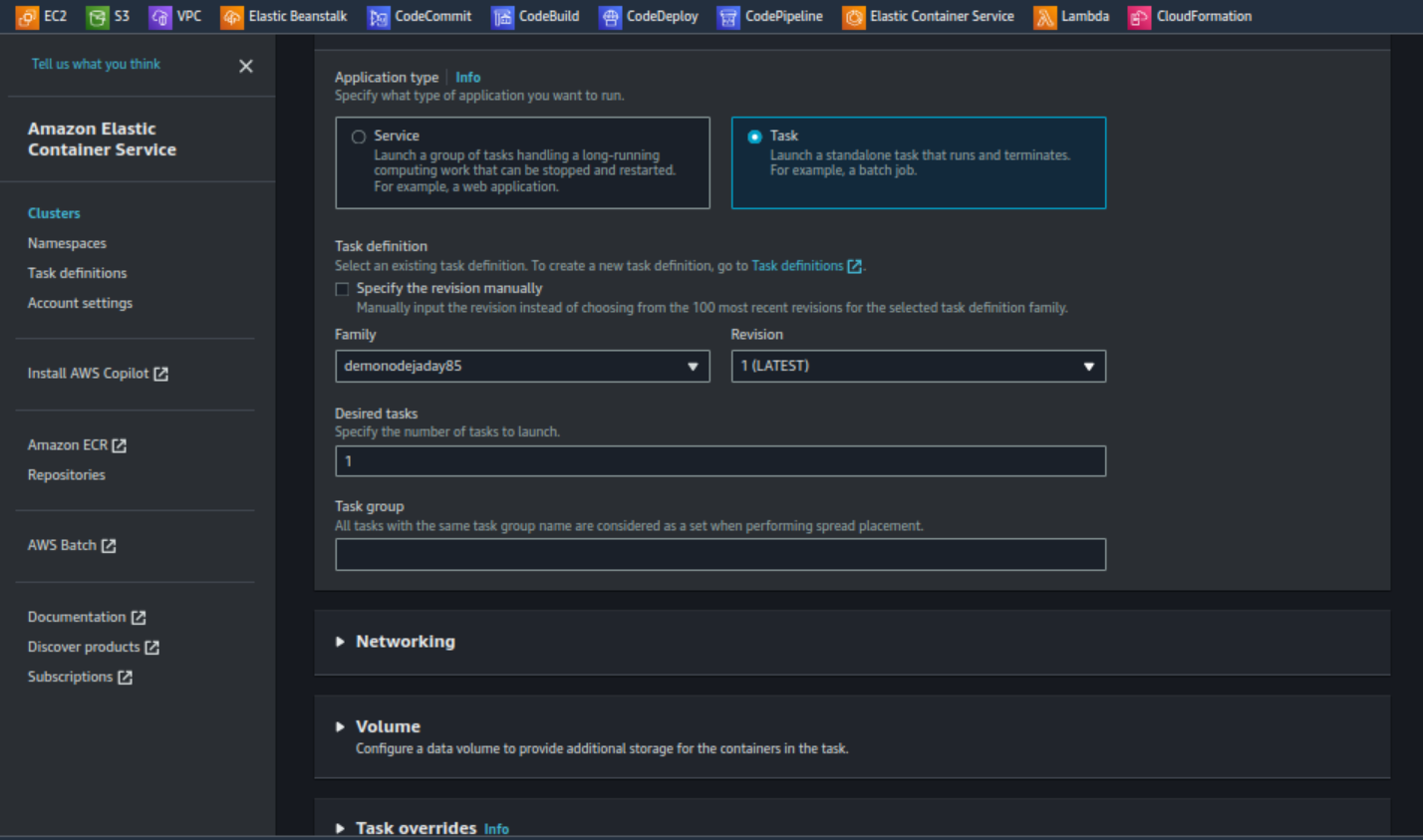
Now select the task created and wait till the status for task showing Running.
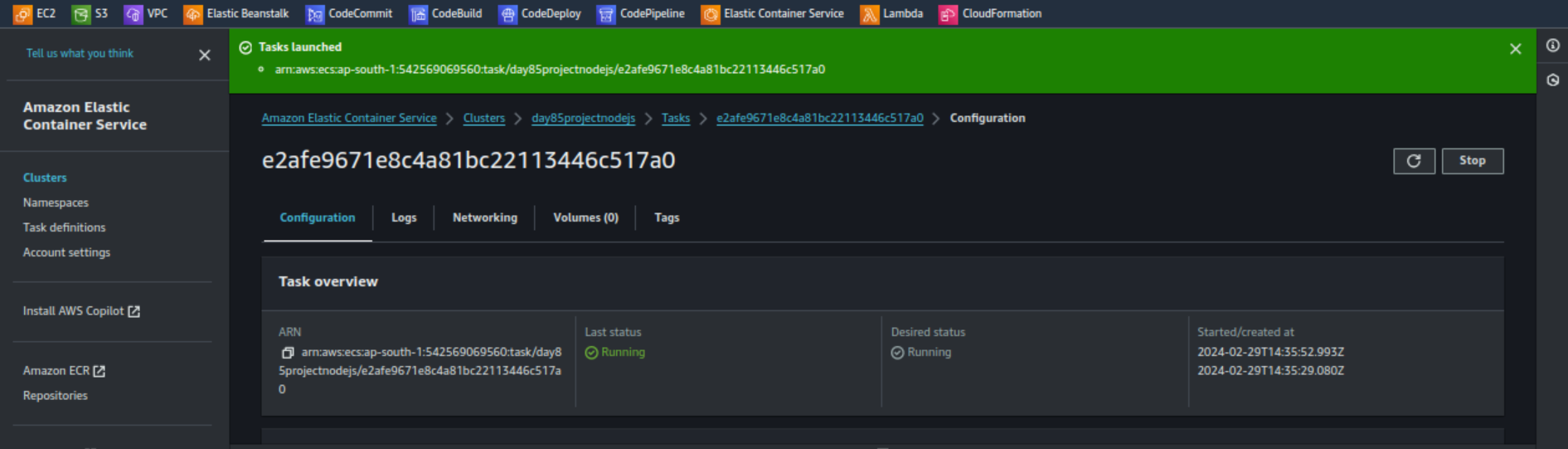
Access ToDo application
Select Configuration tab for the task created earlier. Not down the Public IP and attached ENI ID.
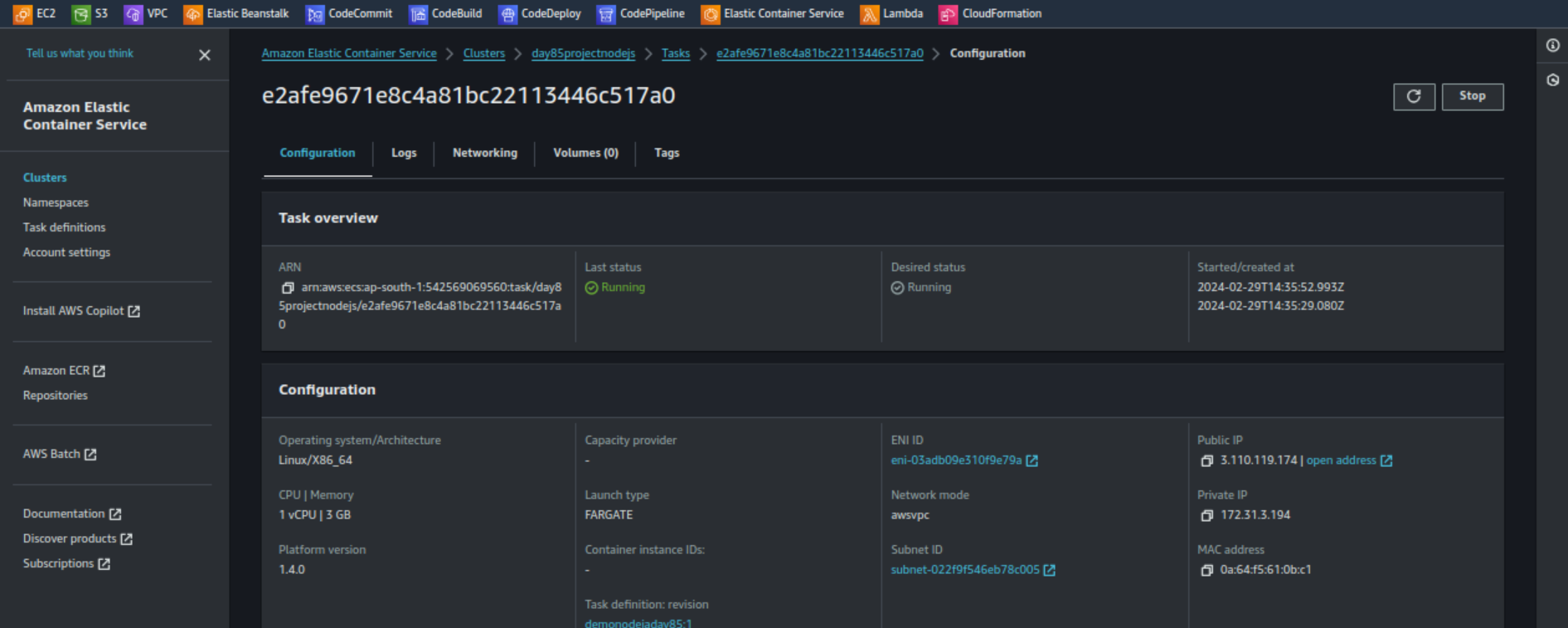
Make sure Security Group connected with ENI ID have entry for the port 8000 in Inbound rules.
Now use the Public IP of associated with task with port defined
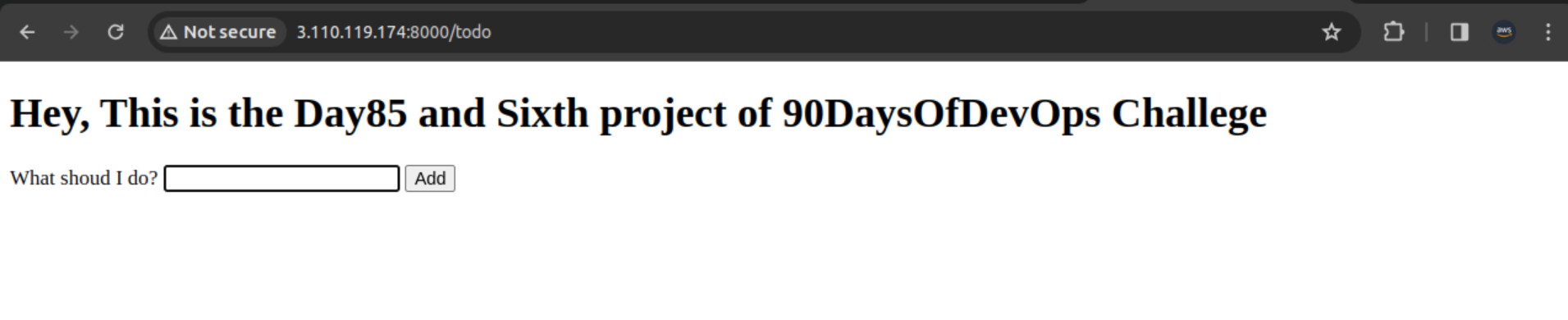
Great! We successfully deploy node JS application on AWS ECS Fargate with ECR service.
Don't forgot to delete cluster and repository created. First stop the running task and then Delete the cluster directly.
Hope you will do the same. Best of luck!
Thank you so much for taking the time to read till the end! Hope you found this blog informative.
Feel free to explore more of my content, and don't hesitate to reach out if need any assistance from me or in case of you have any questions.
Find me on:- Hashnode LinkedIn Github
Happy Learning!


