Introduction:-
Welcome to Day3 of the #90DaysOfDevOps challenge! Today, we'll explore some Linux commands that need to be known by every DevOps engineer. Let's begin with Day3 challenge of #90DaysOfDevOps.
Challenges:-
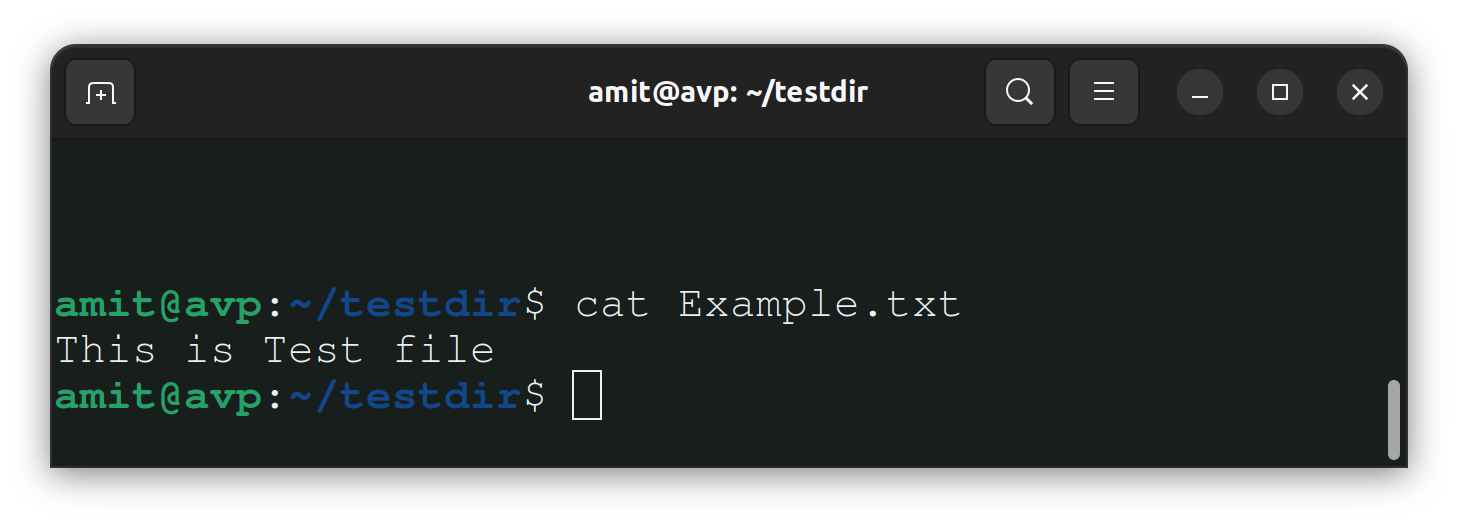
To view what's written in a file:-
To view the content of any file in Linux, we use "cat" command.
Example:-
To change the access permissions of files:-
With "chmod" (Change Mode) command in Linux we can modify or change the access permissions of any file.
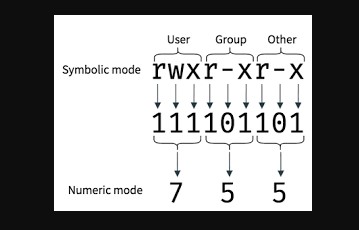
Mainly 3 types of permissions- Read(r/4), Write(w/2), Execute(x/1) used in Linux. There is a Special Permissions also but we'll cover that in depth in another blog.
In Linux permissions can be set for three different categories of users:- User(Owner), Group, and Others.
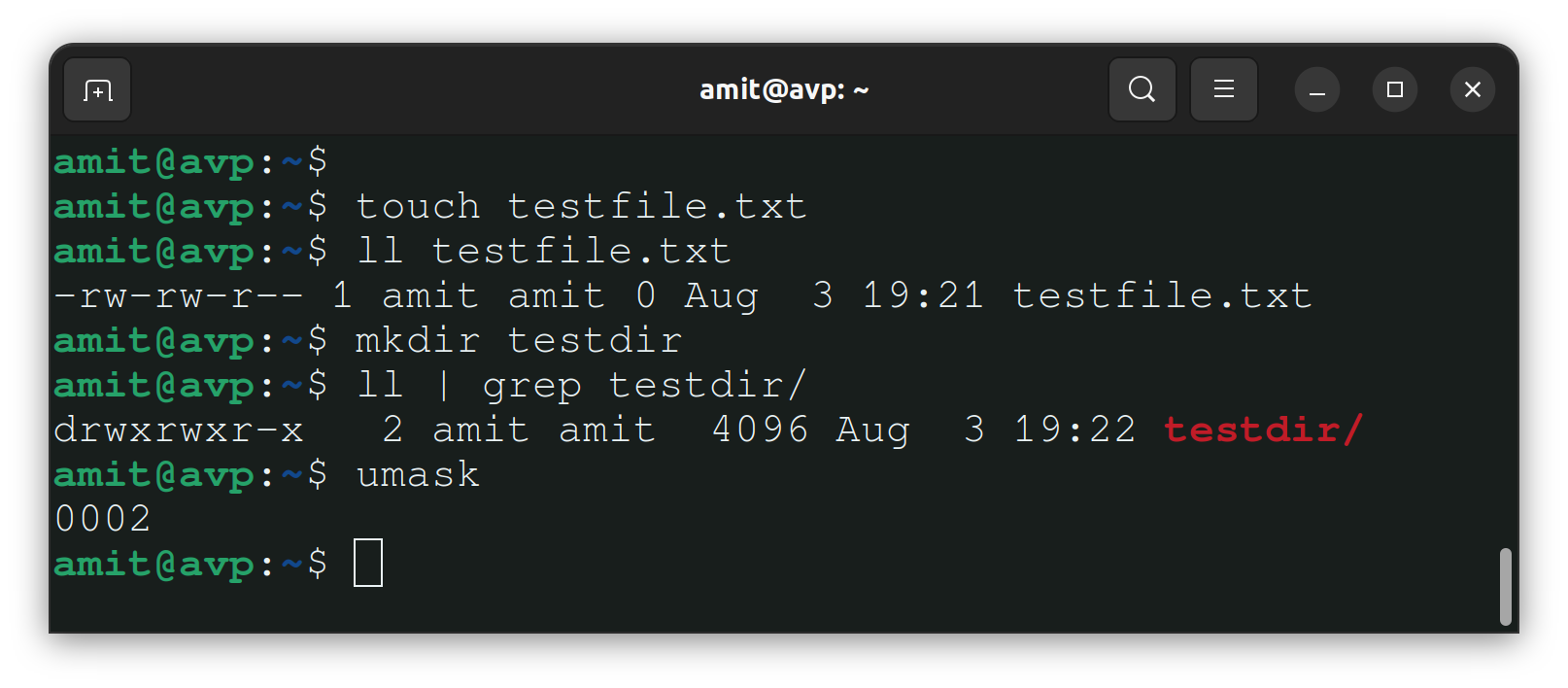
Default Permissions on the Directory is 777(rwxrwxrwx) and for the File it is 666(rw-r--r--).
NOTE:- After creating any file or directory you will see different permissions rather than the default one because of UMASK.
Example:-
To check which commands you have run till now:-
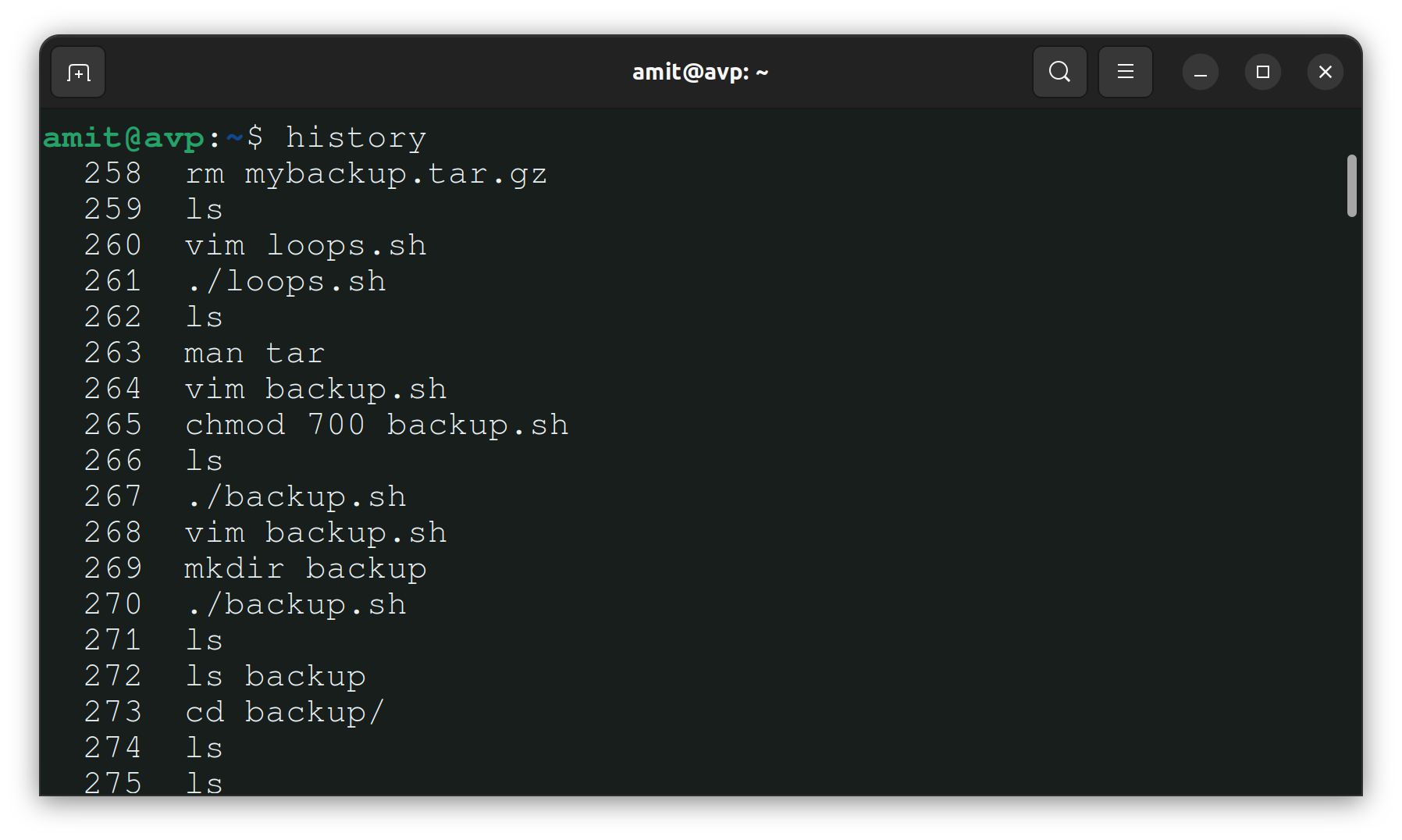
The "history" command is used to display the list of commands that get executed previously for the current user's session.
The command history is stored in a file usually named ".bash_history" in the user's home directory.
Example:-
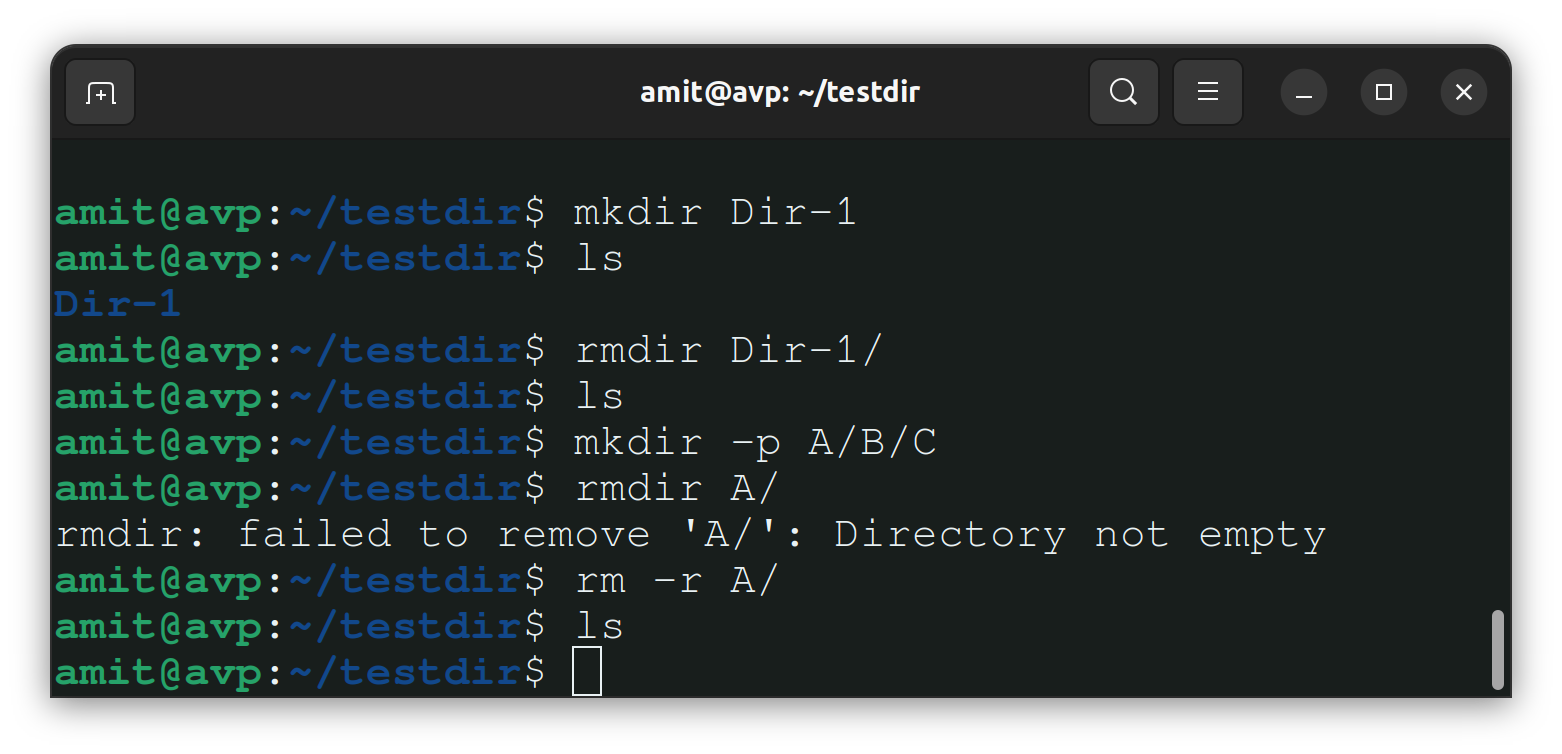
To remove a directory/ Folder:-
To remove an empty directory we use "rmdir" command but if you try to remove a directory containing some files then you have to use "rm -r" command.
Example:-
To create a fruits.txt file and to view the content:-
To create "fruits.txt" file we can use touch command.
"touch" command will create an empty file.
To view the content of "fruits.txt" use "cat" command.
Example:-
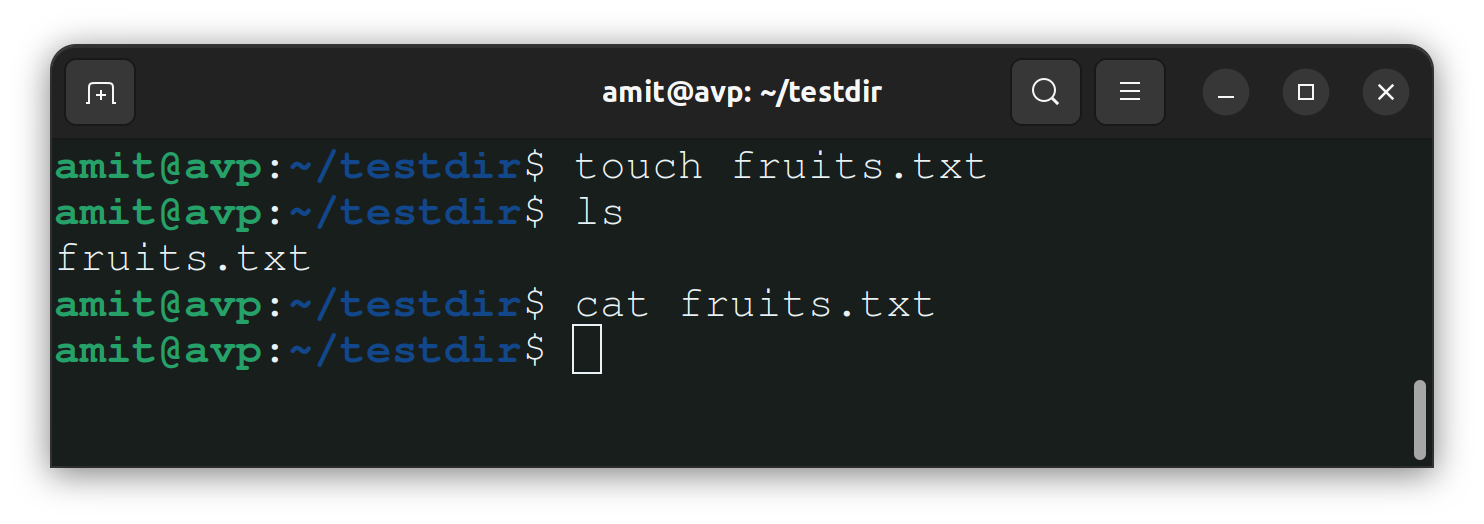
We can't see anything after "cat" command on terminal as it is an empty file.
Add content in fruits.txt (One in each line) - Apple, Mango, Banana, Cherry, Kiwi, Orange, Guava:-
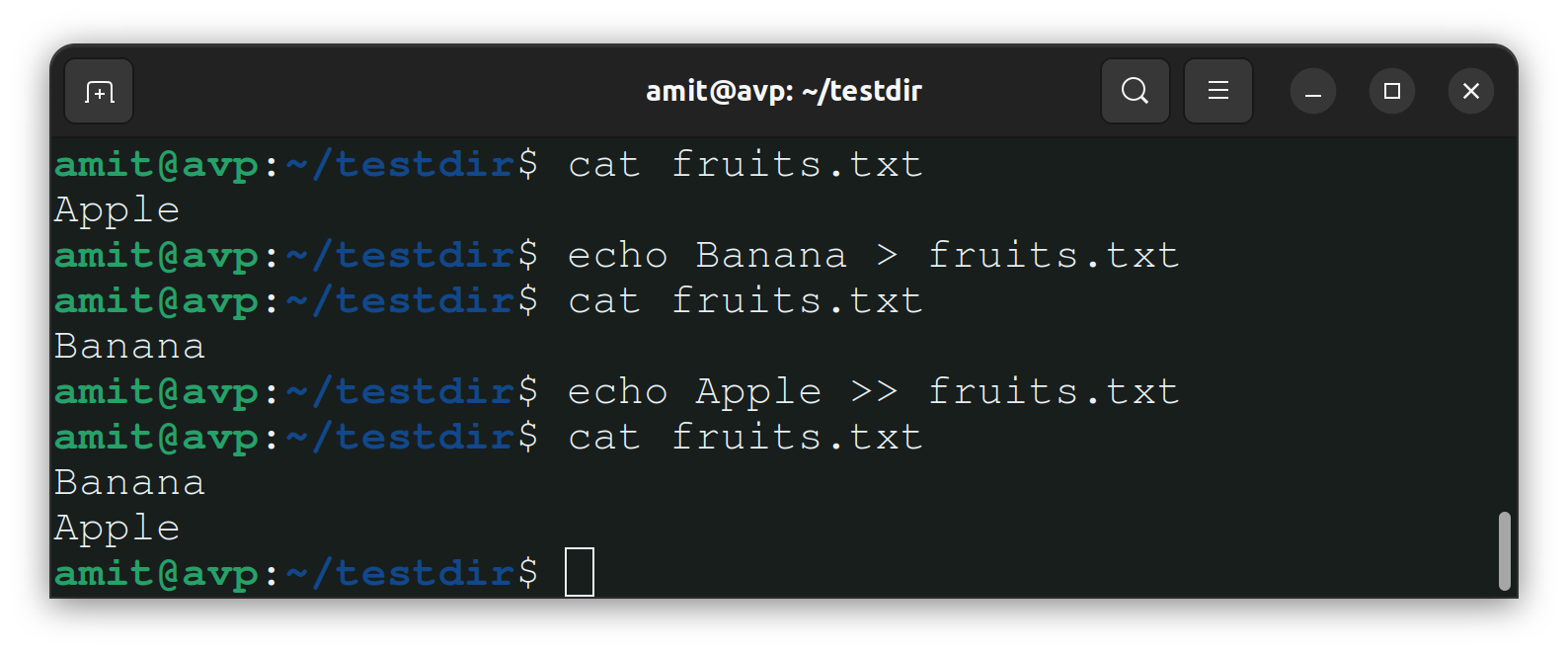
To add content to any file we use the text editors (nano, vim, vi, etc) or the "echo" command. "echo" prints input on the terminal but you can redirect the output in any file with ">".
If you have more lines to store in the same file then use ">>" with "echo" command to append the output in a new line.
Example:-
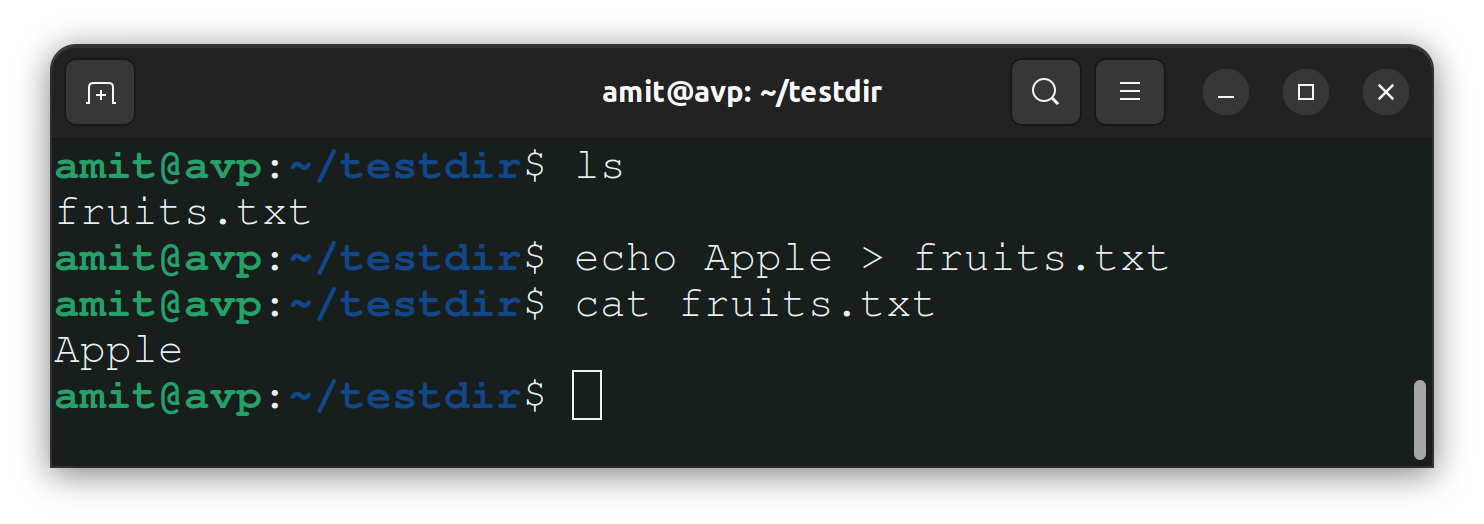
As echo command with ">>" not showing any output on the terminal, use "cat" command to view the content of the file.
Example:-
To Show only top three fruits from the file:-
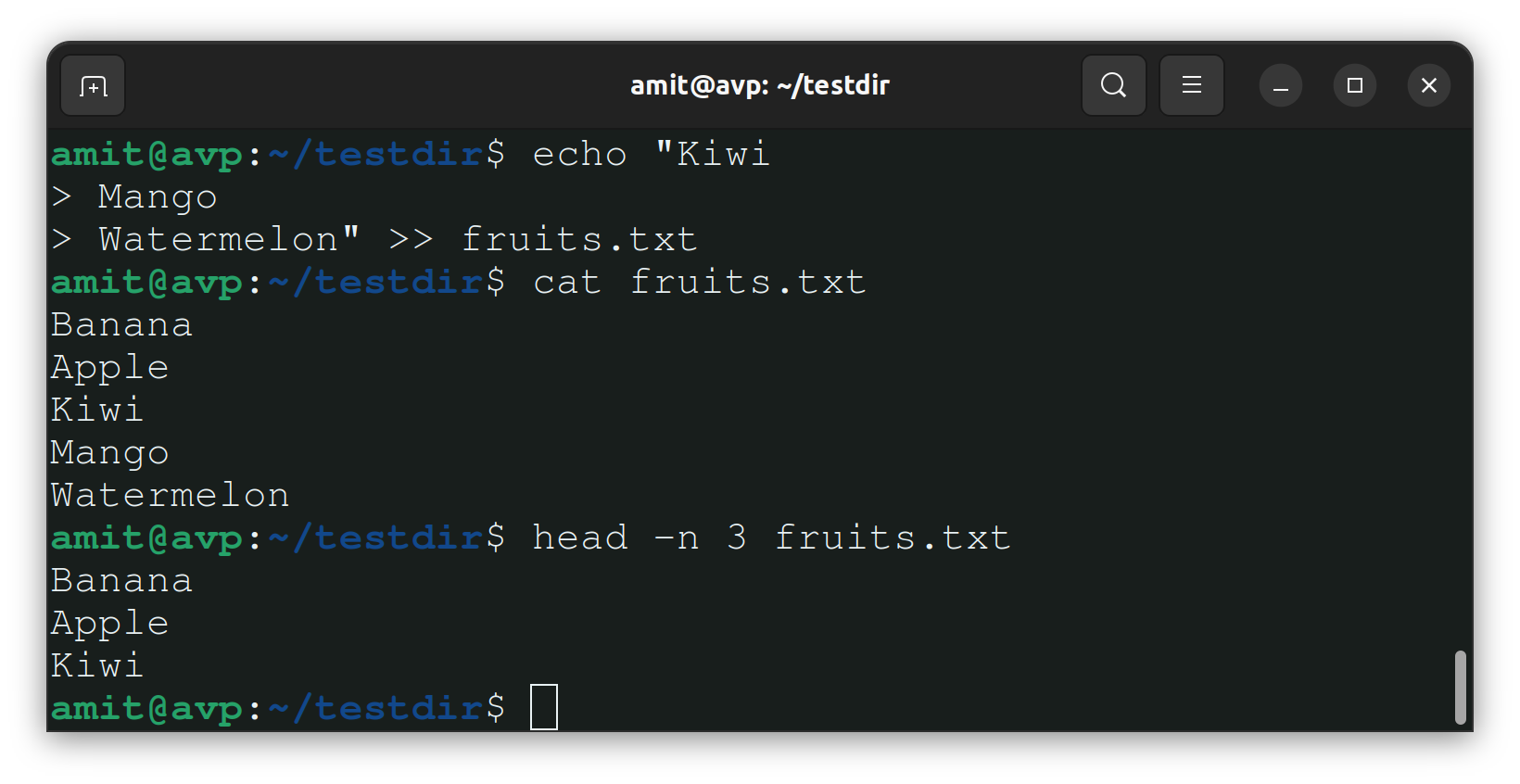
To view the top three fruits listed in "fruits.txt" file we use "head" command with "-n" option to specify the number of lines we want to view from the file.
Example:-
To Show only the bottom three fruits from the file:-
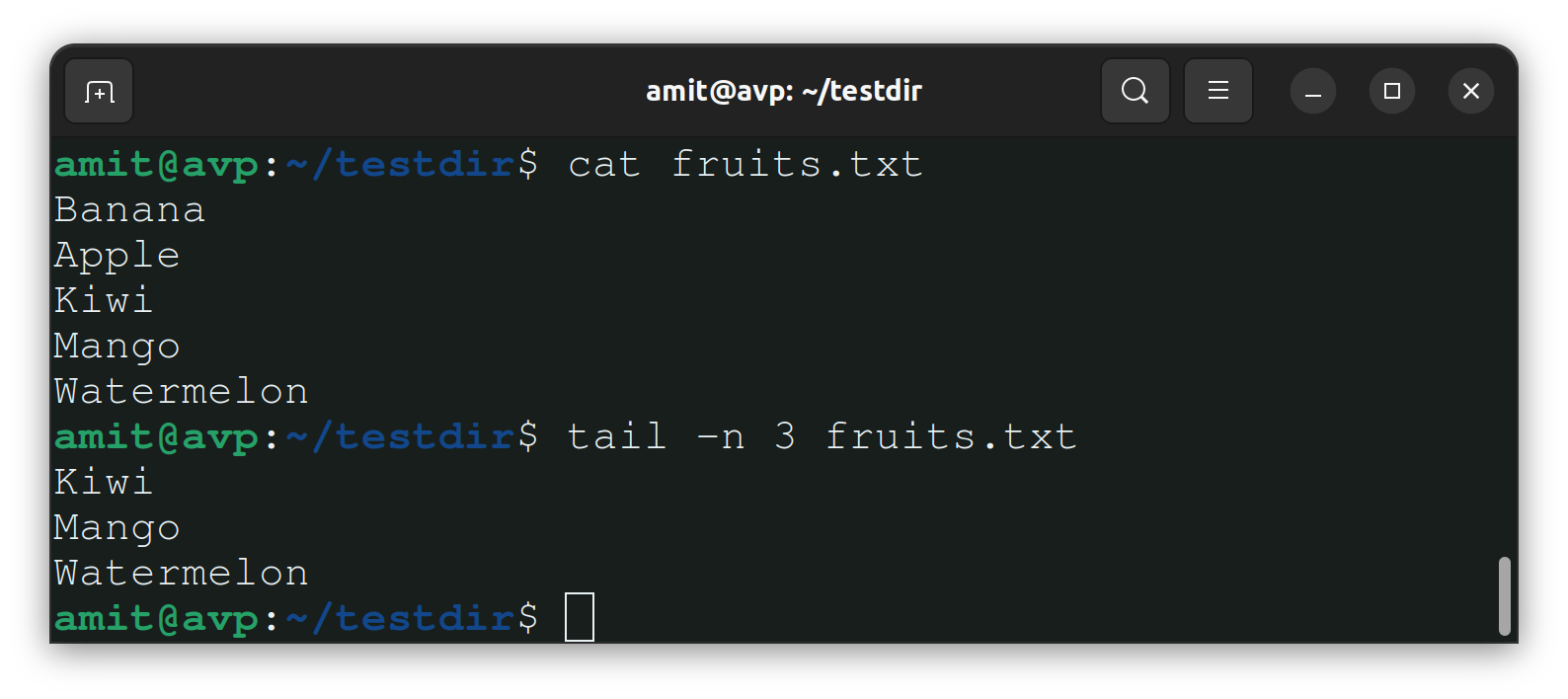
To view the bottom three fruits listed in "fruits.txt" we use "tail" command with "-n" option to specify the number of lines we want to view from the file.
Example:-
To create another file Colors.txt and to view the content:-
Try to do it with "touch" command as already did in Task 5.
Add content in Colors.txt (One in each line) - Red, Pink, White, Black, Blue, Orange, Purple, Grey:-
To add specified content to the "Colours.txt" file with "echo" command we can use either the same as did in Task 6 or do it in the following manner.
Example:-
1- Use "vim" editor to create and edit the file using
vim Colours.txtcommand, and then you will enter a blank screen. Press "i" to enter INSERT mode.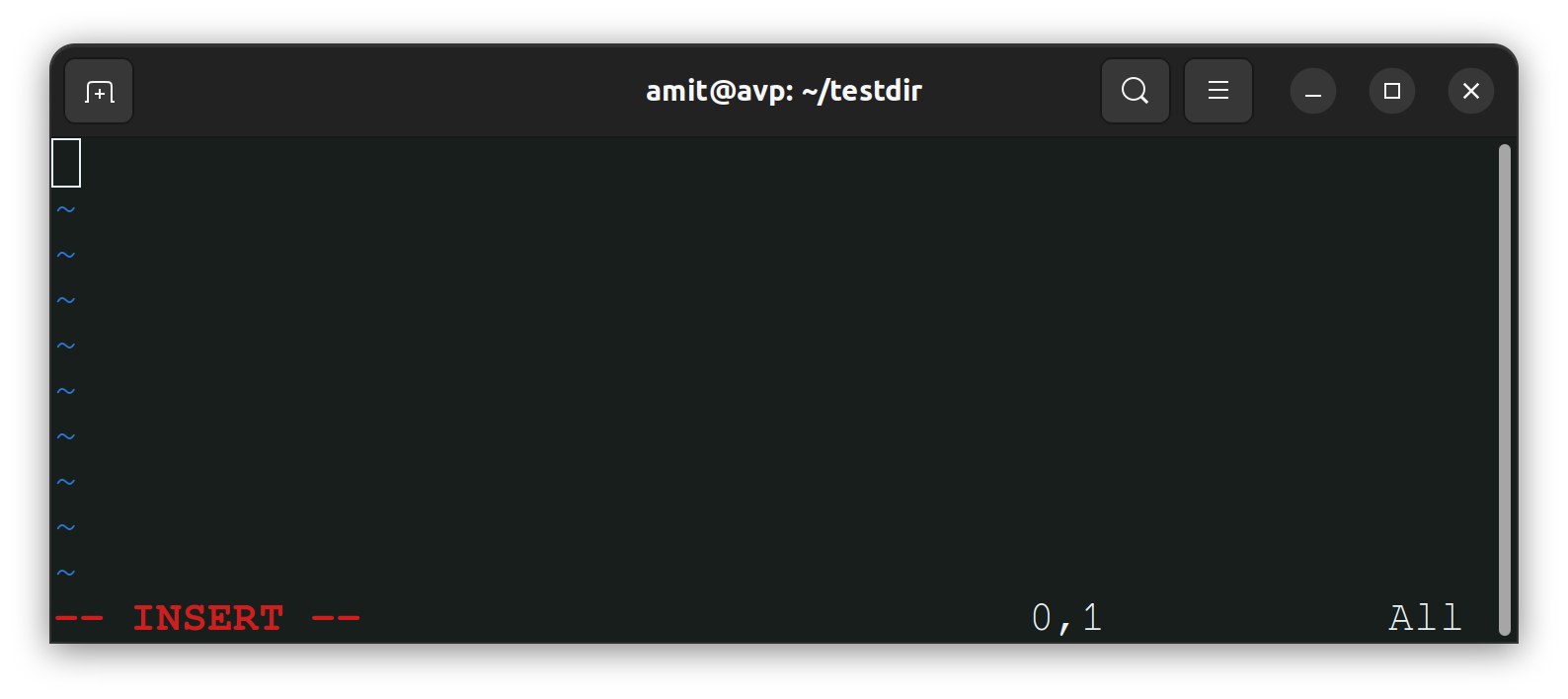
2- Insert data as per requirements. The below screenshot shows details as per the task. After Inserting all data press
ESCkey to escape INSERT mode and thenwqto save the file.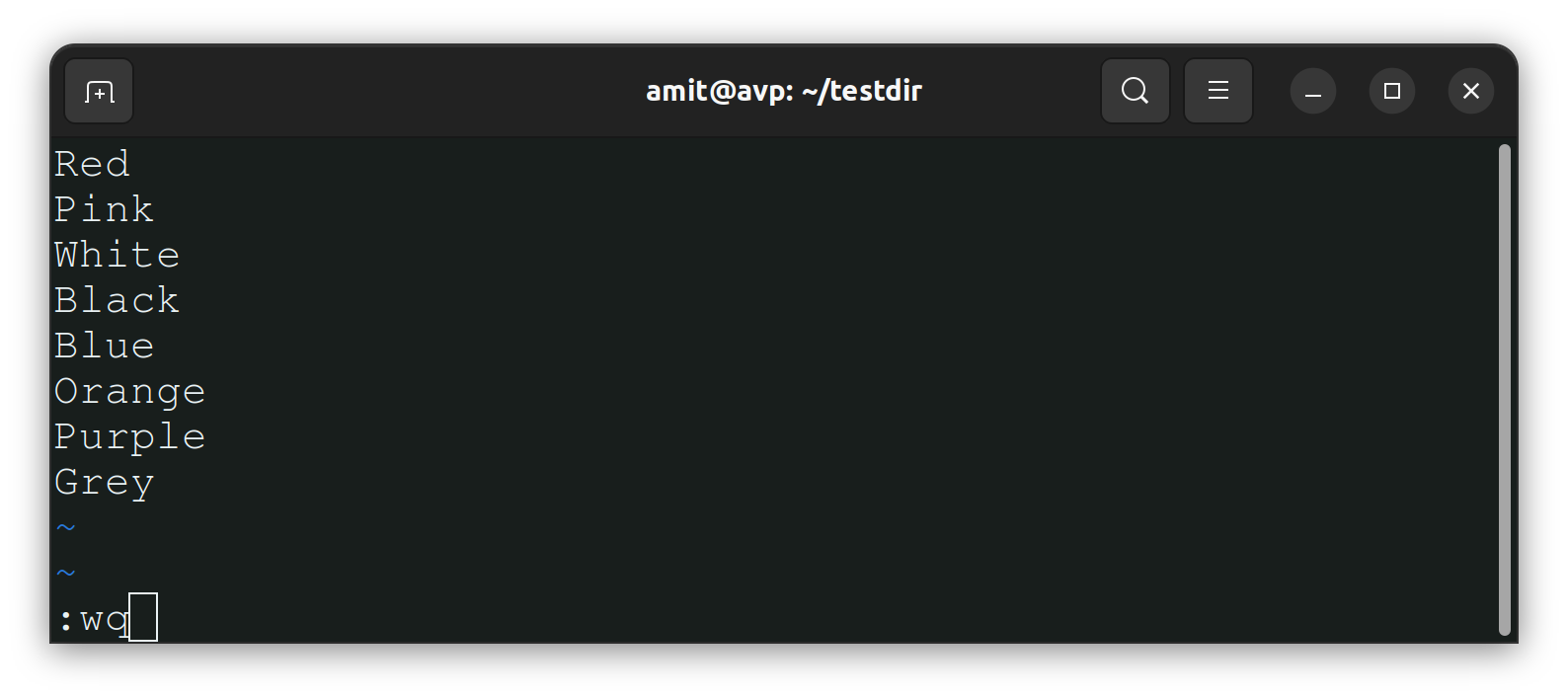
To find the difference between fruits.txt and Colors.txt files:-
To find the difference between any two files in Linux we use "diff" command. It compares the contents of given files and displays the differences between them.
Example:-
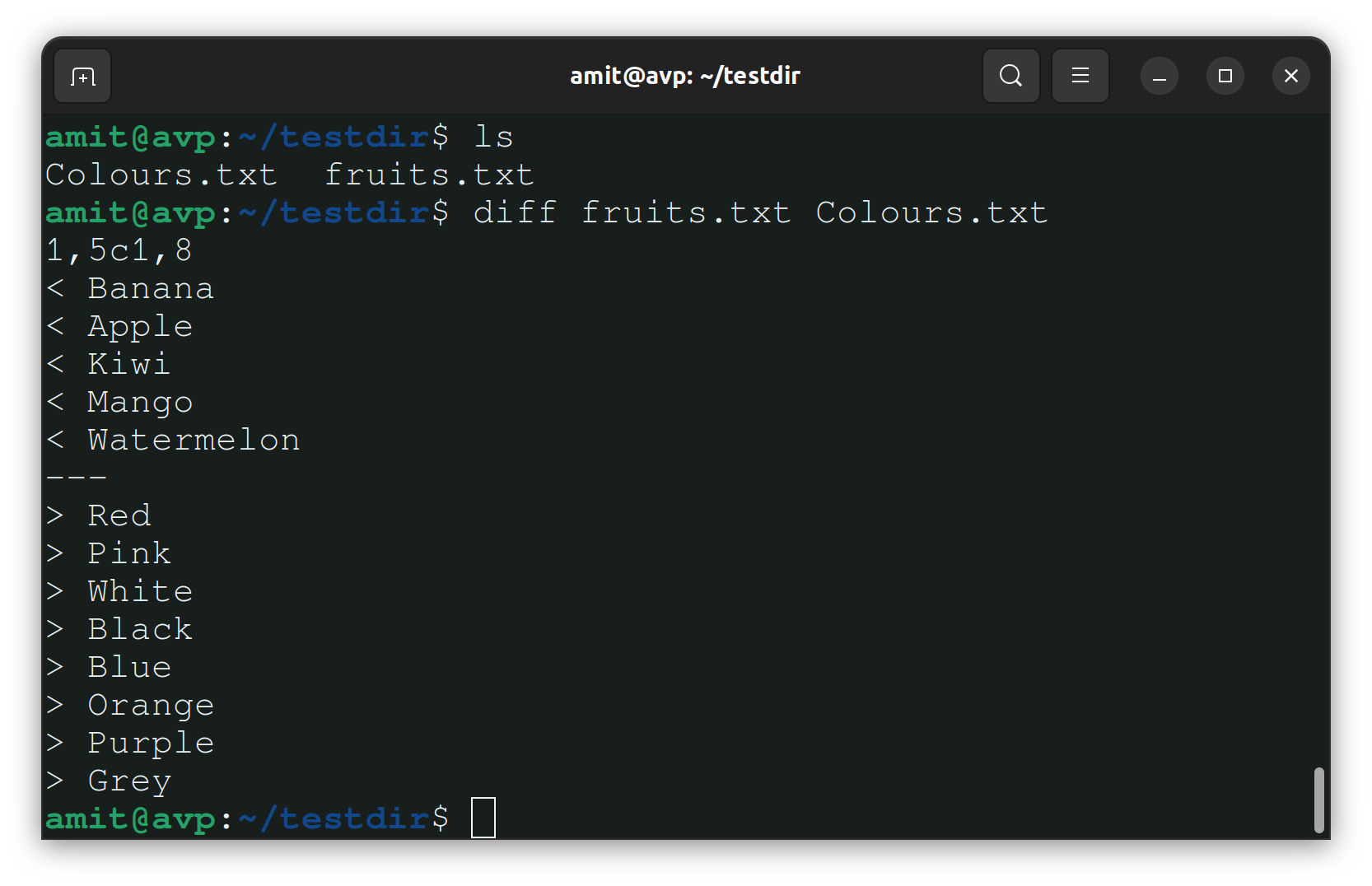
Some options are used with "diff" command-
-u or --unified :- Shows both changed lines and some context around the changes.
-r or --recursive :- Used when comparing directories.
-i or --ignore-case :- Ignores case differences.
-w or --ignore-all-space :- Ignores all white spaces (tabs and spaces).
Thank you so much for taking the time to read till the end! Hope you found this blog informative and helpful in understanding the Linux commands.
Feel free to explore more of my content, and don't hesitate to reach out if need any assistance from me or in case of you have any questions.
Find me on:- Hashnode LinkedIn
Happy Learning!


