Day 46- 90DayOfDevOps
Set up CloudWatch alarms and SNS topic in AWS
Hey Learners! Welcome back. It's been so many days since we have been using AWS services what if any service is charging your bill continuously and you don't know unless and until the bill gets generated, To watch such kinds of activities we use an AWS service called CloudWatch and inform to the responsible person using the SNS service. Let's deep dig into it...
What is Amazon CloudWatch?
Amazon CloudWatch monitors your AWS resources and the applications you run on AWS in real-time. You can use CloudWatch to connect and track metrics, which are variables you can measure for your resources and applications.
What is Amazon SNS?
Amazon Simple Notification Service (SNS) is a notification service provided as part of AWS since 2010. It provides a low-cost infrastructure for the mass delivery of messages, predominantly to mobile users.
Task:-
Create a CloudWatch alarm that monitors your billing and sends an email to you when it reaches $2
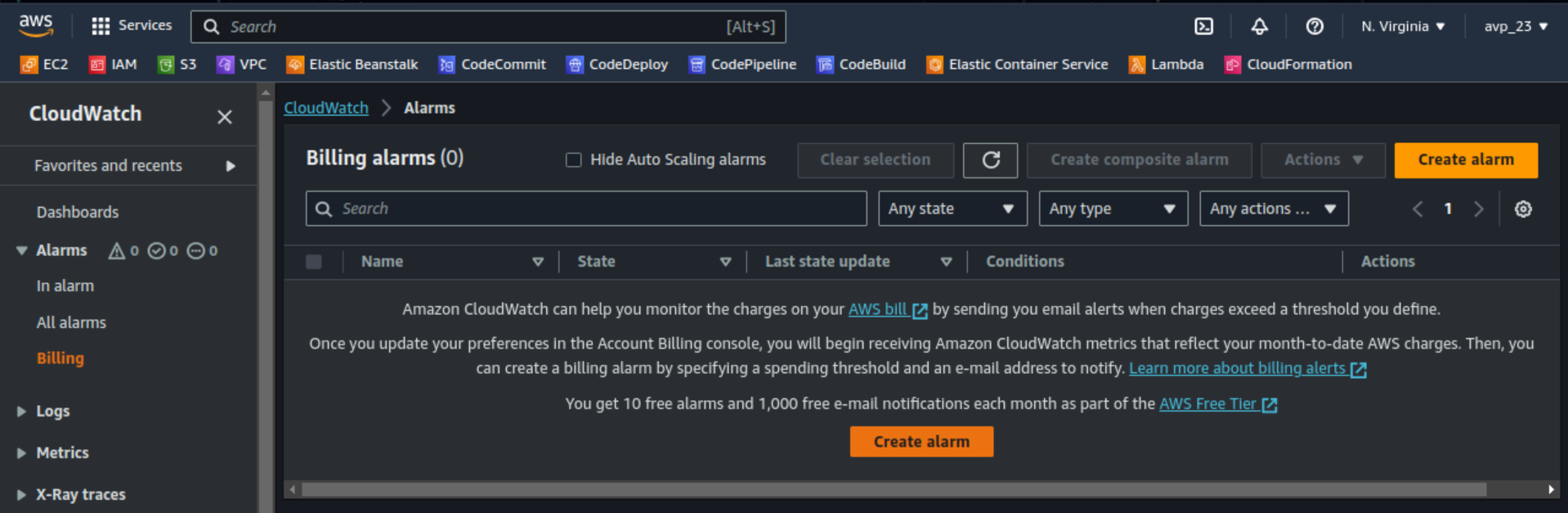
Sign in to the AWS console and search for CloudWatch service. Select Alarms from the left navigation pane and click Create alarm.
Note:- In some regions, the Billing Alarm option is not available. For this challenge, I have selected the us-east-1(N.Virginia) region
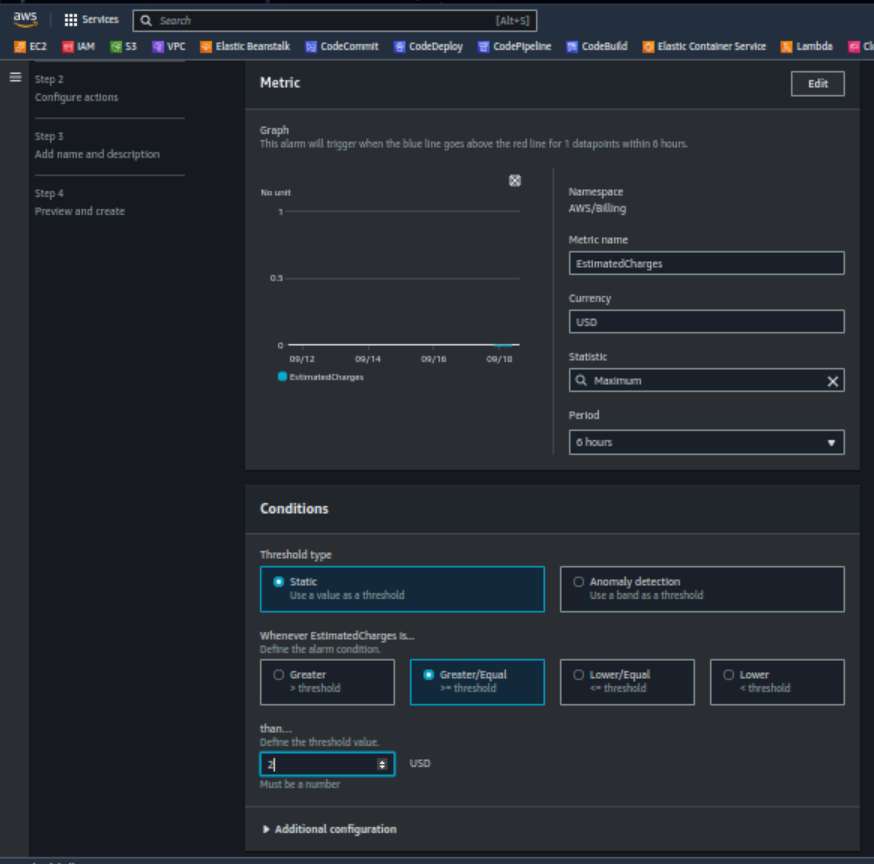
Define the Threshold type as Static and mention the estimated charges accordingly.
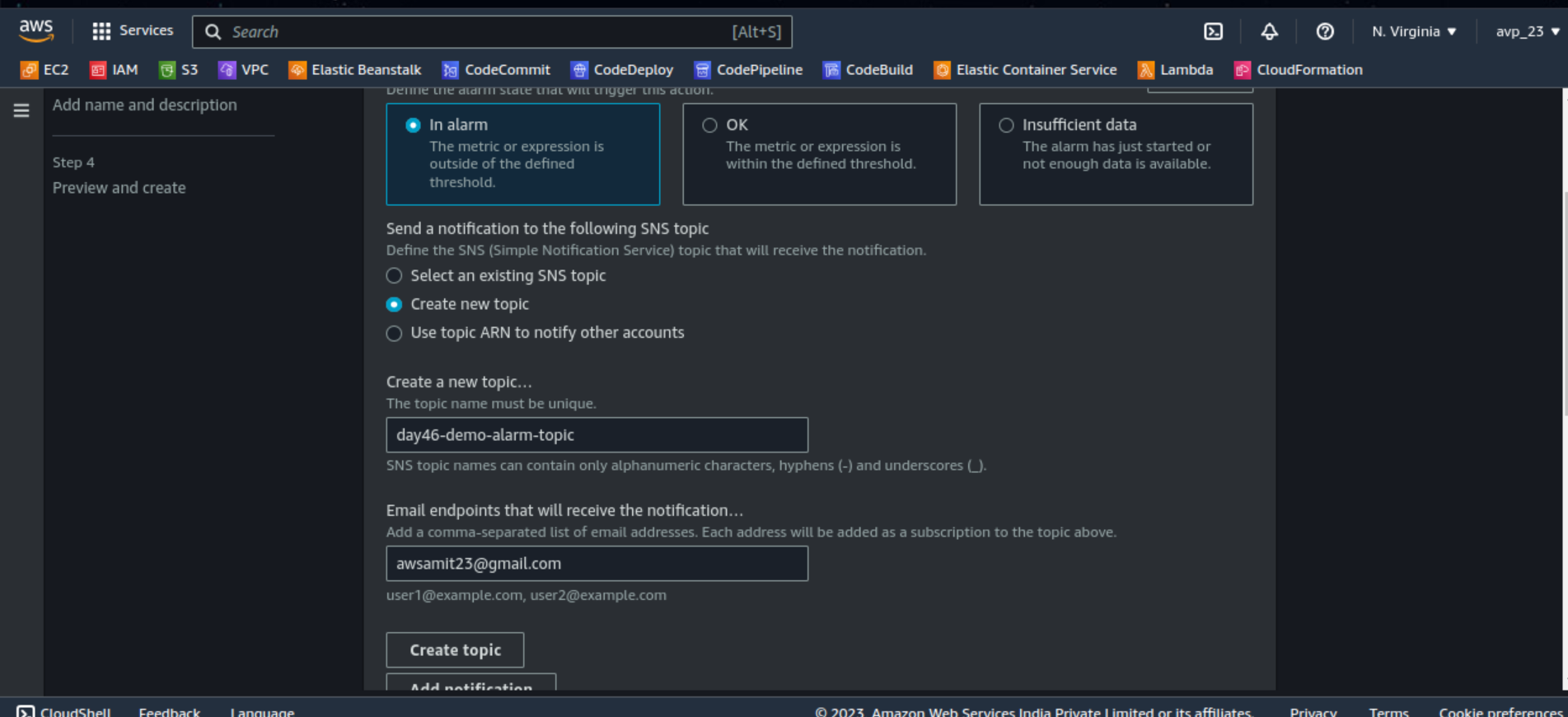
Select In alarm as an Alarm state trigger and create a new topic for SNS. Click Create topic.
You can view details of your created SNS topic by clicking View in SNS console.
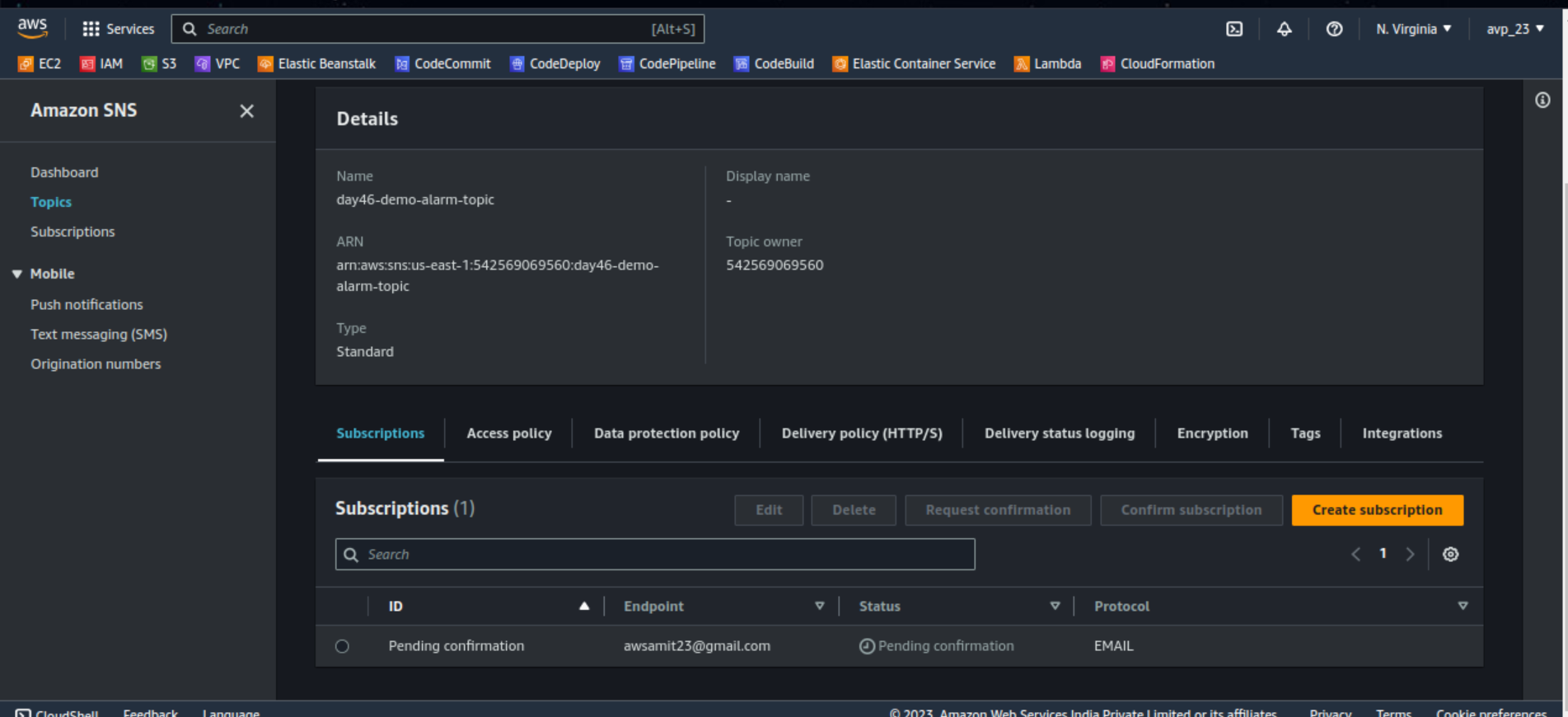
As you see Status is showing Pending confirmation. Check the entered mail ID and confirm the subscription.
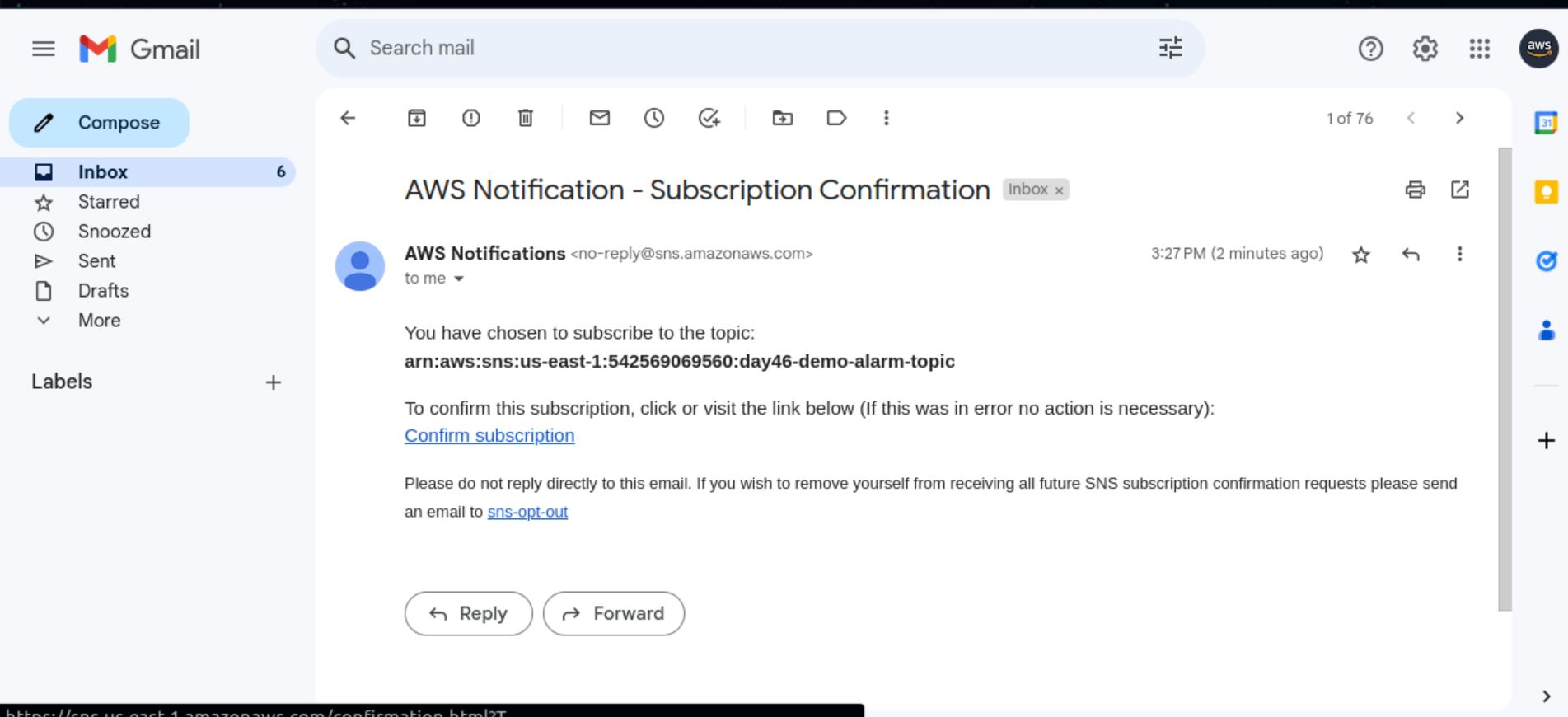
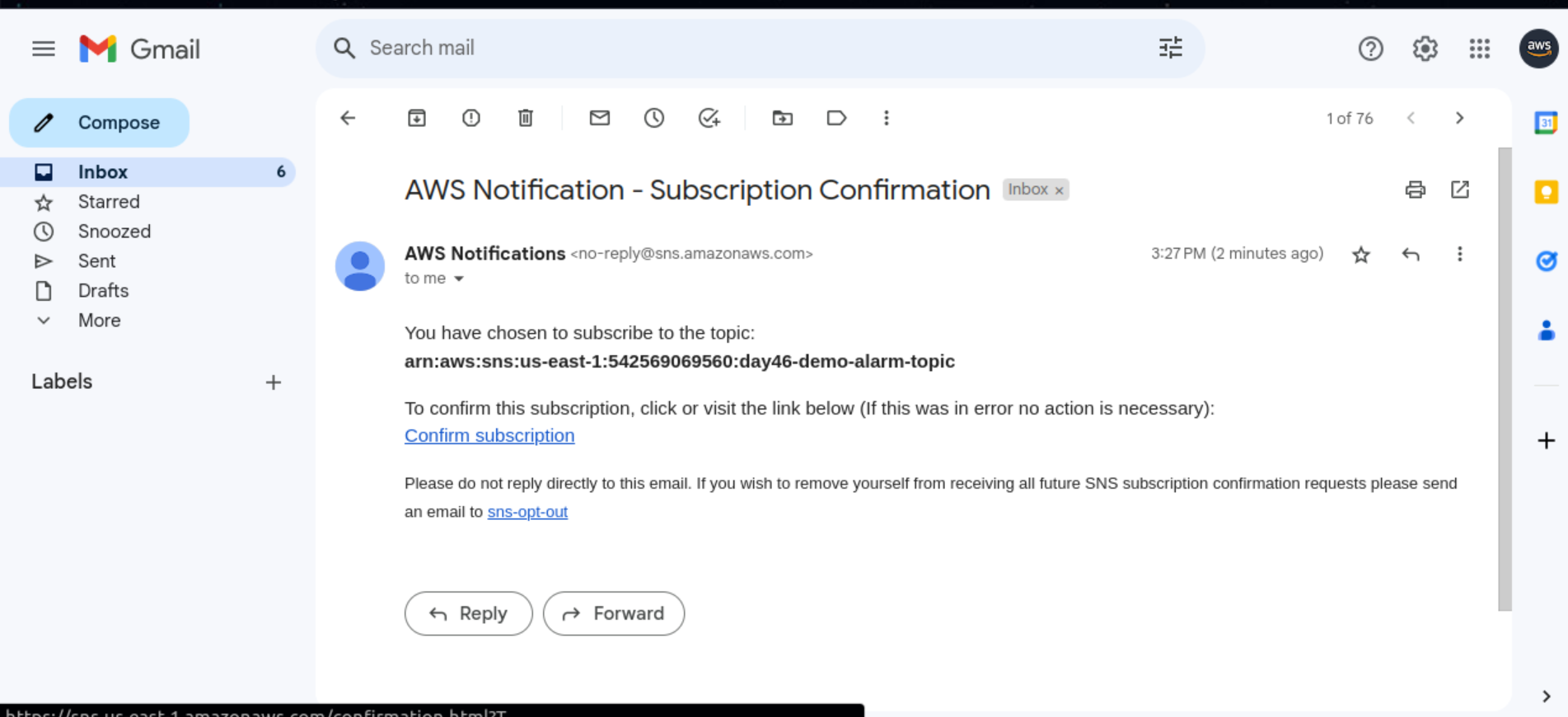
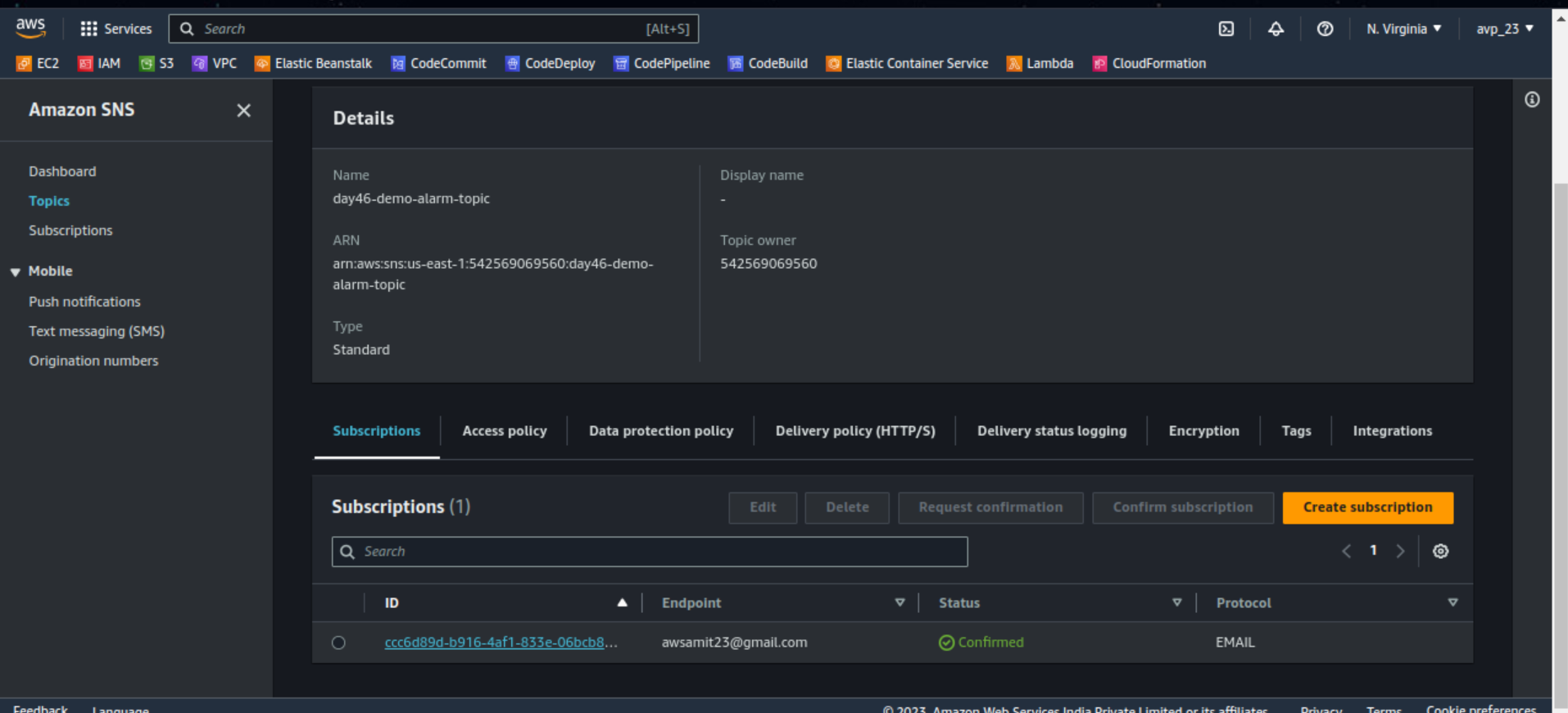
Now check the SNS console. You will see the Status as Confirmed.
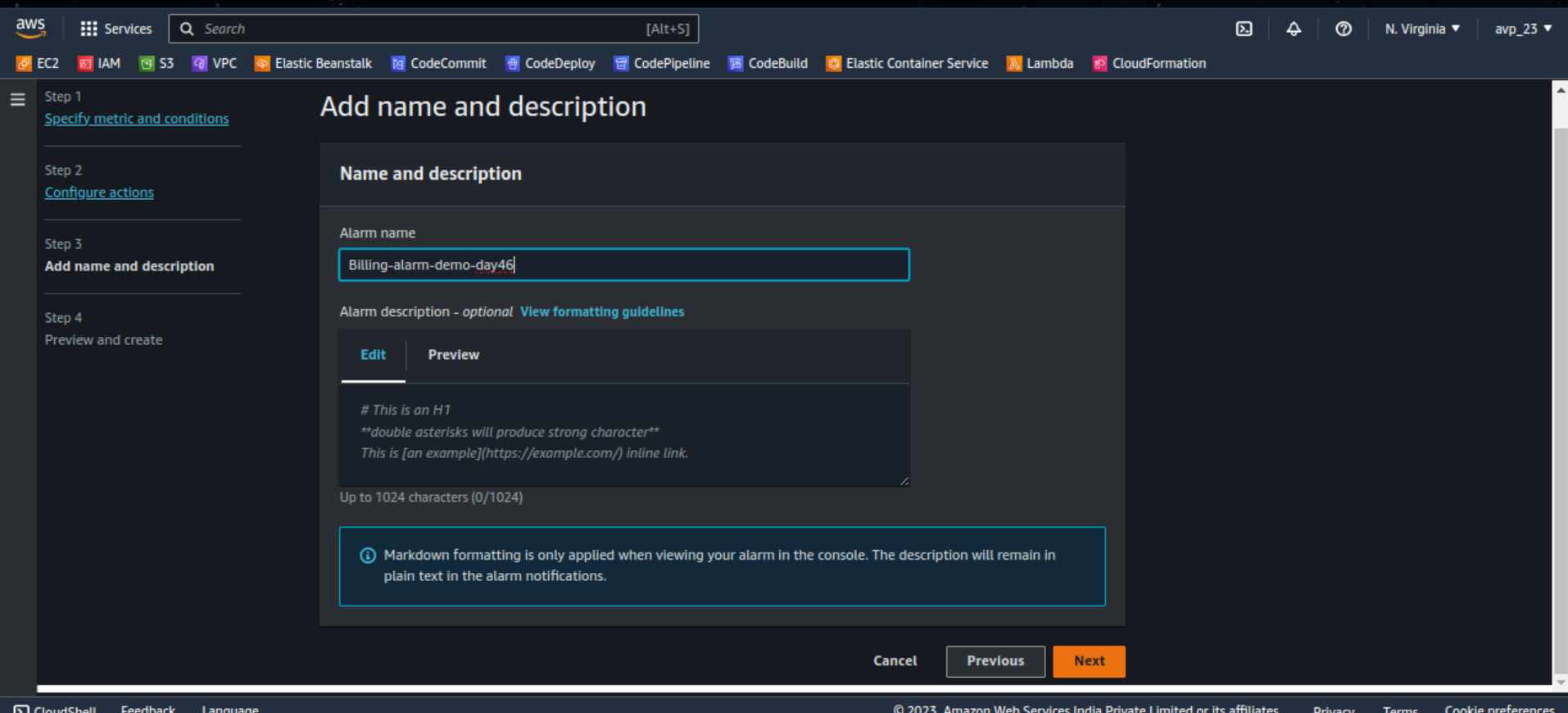
Now back to Alarm. Click Next and enter the name and descriptionfor Alarm. Click Next. Review the details entered and click Create alarm.
Wait for 2-3 min and check All alarms
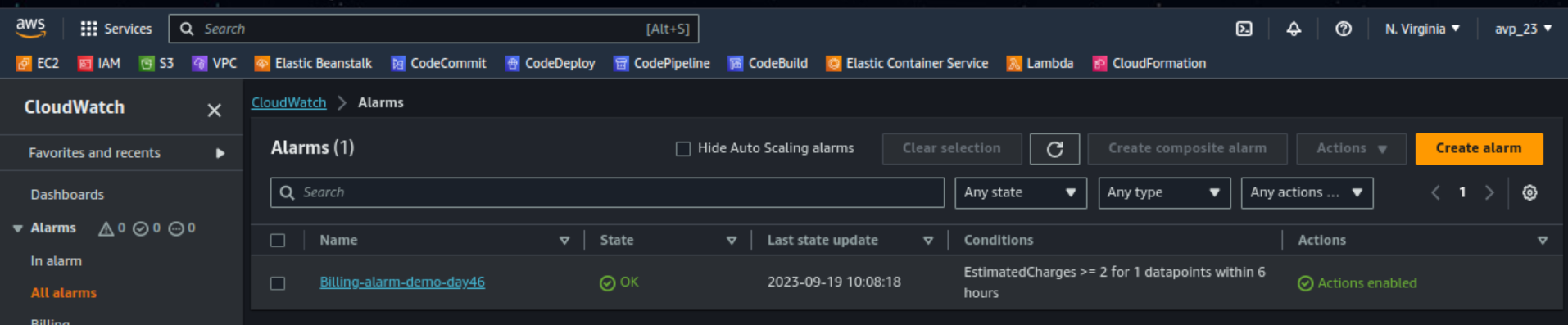
This will trigger the notification after touching the Threshold value($2).
If you want to demonstrate this by using some costly services and after having a $2 bill you will get a notification by mail on the mentioned mailID. (OWN RISK)
Delete the billing Alarm that you created now
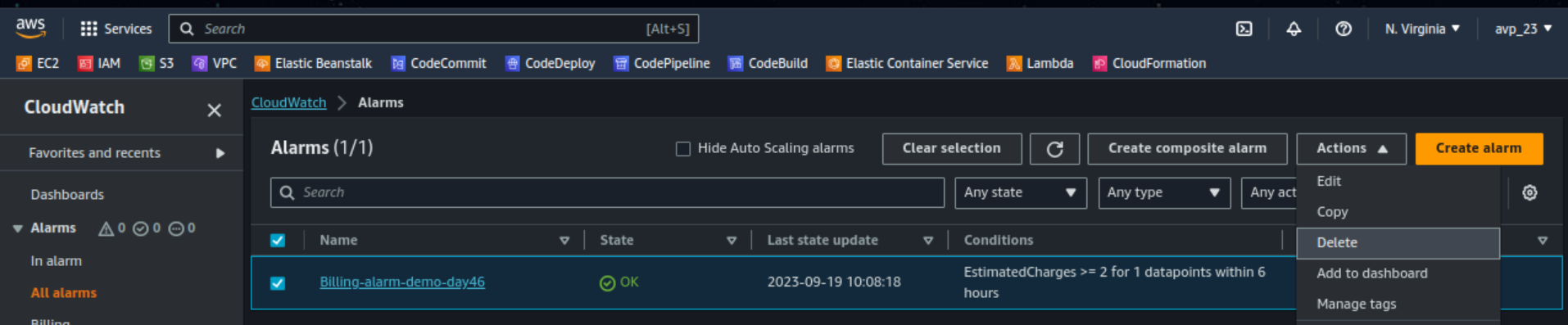
To delete the alarm you created Go to All alarms and select the alarm you want to delete. Click on Actions and choose Delete.
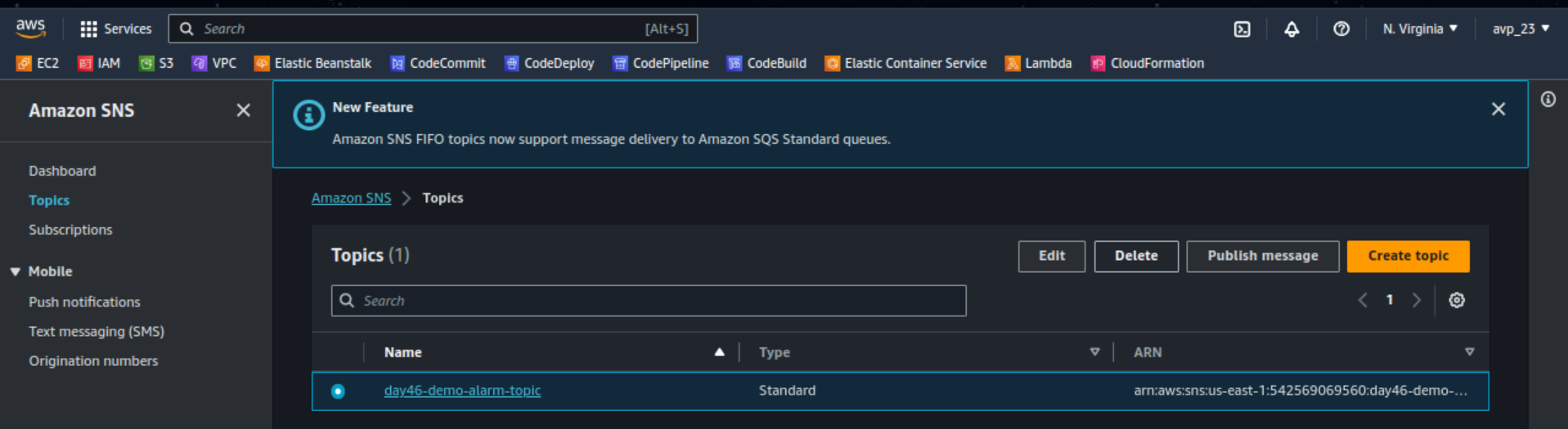
Also, delete the SNS topic created. Search for SNS service and Select Topic from the left navigation pane. Select the topic you want to delete and click Delete. type delete me when asked for confirmation and click Delete.
Thank you so much for taking the time to read till the end! Hope you found this blog informative.
Feel free to explore more of my content, and don't hesitate to reach out if need any assistance from me or in case of you have any questions.
Find me on:- Hashnode LinkedIn Github
Happy Learning!


